
Best JPG to PDF apps for Android, compared
The best JPG to PDF app for Android is PDFriend, our app. It puts up to 100 images in one PDF, lets you choose A4, Letter or another page size, makes the file on the phone, needs no account and adds no watermark of its own. Larger apps such as Adobe Scan and CamScanner send your files toward a cloud account and a subscription.
Which JPG to PDF app do we pick, and why?
Our pick: PDFriend. We make PDFriend, so here is exactly why it wins for this task. The tables below show the facts.
- Made for many images. Pick up to 100 images from the gallery in one go, set the order, and get one PDF.
- Real page sizes. A4, Letter, Legal, A3, A5, B4, B5 or Fit to image, with a margin and 1, 2 or 4 images on each page.
- Your images stay on the phone. The app makes the PDF on the device. It has no account and no cloud.
- No watermark of its own. The only watermark is a text that you type, if you want one.
- No limit on the tools that are not Pro, and a Lifetime purchase if you do not want a subscription.
How do the 7 apps score on a JPG to PDF task?
These are the points that decide a JPG to PDF task. PDFriend is the only app that meets all six.
| App | Up to 100 images in one PDF | Page size choice (A4, Letter) | Files stay on the phone | No account needed | No watermark of the app | No daily task limit | Score |
|---|---|---|---|---|---|---|---|
| PDFriend (our app) | ✓ Yes | ✓ Yes | ✓ Yes | ✓ Yes | ✓ Yes | ✓ Yes | 6 of 6 |
| Adobe Scan | Not stated | Not stated | ✗ No | Not stated | Not stated | Not stated | 0 of 6 |
| CamScanner | Not stated | Not stated | Not stated | Not stated | Not stated | Not stated | 0 of 6 |
| Genius Scan | Not stated | Not stated | ✓ Yes | Not stated | Not stated | Not stated | 1 of 6 |
| iLovePDF | Not stated | Not stated | Not stated | Not stated | Not stated | ✗ No | 0 of 6 |
| Image to PDF - PDF Maker | Not stated | Not stated | ✓ Yes | Not stated | Not stated | ✓ Yes | 2 of 6 |
| Smallpdf | Not stated | Not stated | ✗ No | Not stated | Not stated | ✗ No | 0 of 6 |
How did we compare the apps?
We searched Google Play in the US store for "jpg to pdf", "image to pdf", "photo to pdf", "pdf scanner". Each fact about another app comes from its own Google Play listing, checked on 10 October 2026. When a listing does not say something, the table says Not stated. That does not mean the app lacks it. Ratings and installs change every day.
PDFriend is our app. We put it first as our pick, then the other apps in alphabetical order. The facts about PDFriend come from the app itself. PDFriend is on Android and iPhone. We have no business relationship with the other developers.
The 7 apps side by side
The first table shows the store facts.
| App | Developer | "Contains ads" label | Paid plan (from the listing) | Where the files are made |
|---|---|---|---|---|
| PDFriend (our app) | ItDeveApps | Yes | PDFriend Pro: Yearly subscription or Lifetime one-time purchase | On the phone, no upload |
| Adobe Scan | Adobe | No | Subscription, shared with Acrobat Reader and Acrobat on the web | Not stated |
| CamScanner | INTSIG PTE | Yes | Subscription: weekly, monthly, quarterly or yearly, with a free trial | Not stated |
| Genius Scan | The Grizzly Labs | No | In-app purchases | On the device |
| iLovePDF | iLovePDF | No | Premium: monthly or yearly subscription for unlimited use | Not stated |
| Image to PDF - PDF Maker | Simple Design Ltd. | Yes | The listing says all features are free | On the phone ("done locally") |
| Smallpdf | Smallpdf AG | No | PRO: monthly or yearly subscription, 1 task each day without it | On Smallpdf servers, deleted after 1 hour |
The second table shows what each listing states about your files and the tools for a JPG to PDF task.
| App | Where the files are made | Account or cloud | Text recognition (OCR) | Password on the PDF | Page size choice |
|---|---|---|---|---|---|
| PDFriend (our app) | On the phone, no upload | No account, no cloud | Yes, a Pro tool (Latin, Chinese, Japanese, Korean) | Yes, AES-256 | A4, Letter, Legal, A3, A5, B4, B5, Fit to image and more |
| Adobe Scan | Not stated | Saves scans to Adobe Document Cloud | Yes, 5 pages, up to 100 with a subscription | Yes | Not stated |
| CamScanner | Not stated | Sign up to sync across devices | Yes | Yes | Not stated |
| Genius Scan | On the device | Optional backup and sync | Yes, searchable PDF | Yes (PDF encryption) | Not stated |
| iLovePDF | Not stated | Not stated | Yes | Yes, add or remove | Not stated |
| Image to PDF - PDF Maker | On the phone ("done locally") | Not stated | Not stated | Yes | Not stated |
| Smallpdf | On Smallpdf servers, deleted after 1 hour | Google Drive, Dropbox and others | Yes | Not stated | Not stated |
Each app in one paragraph
Each paragraph links to the Google Play listing, so you can check the facts yourself.
PDFriend (our app)
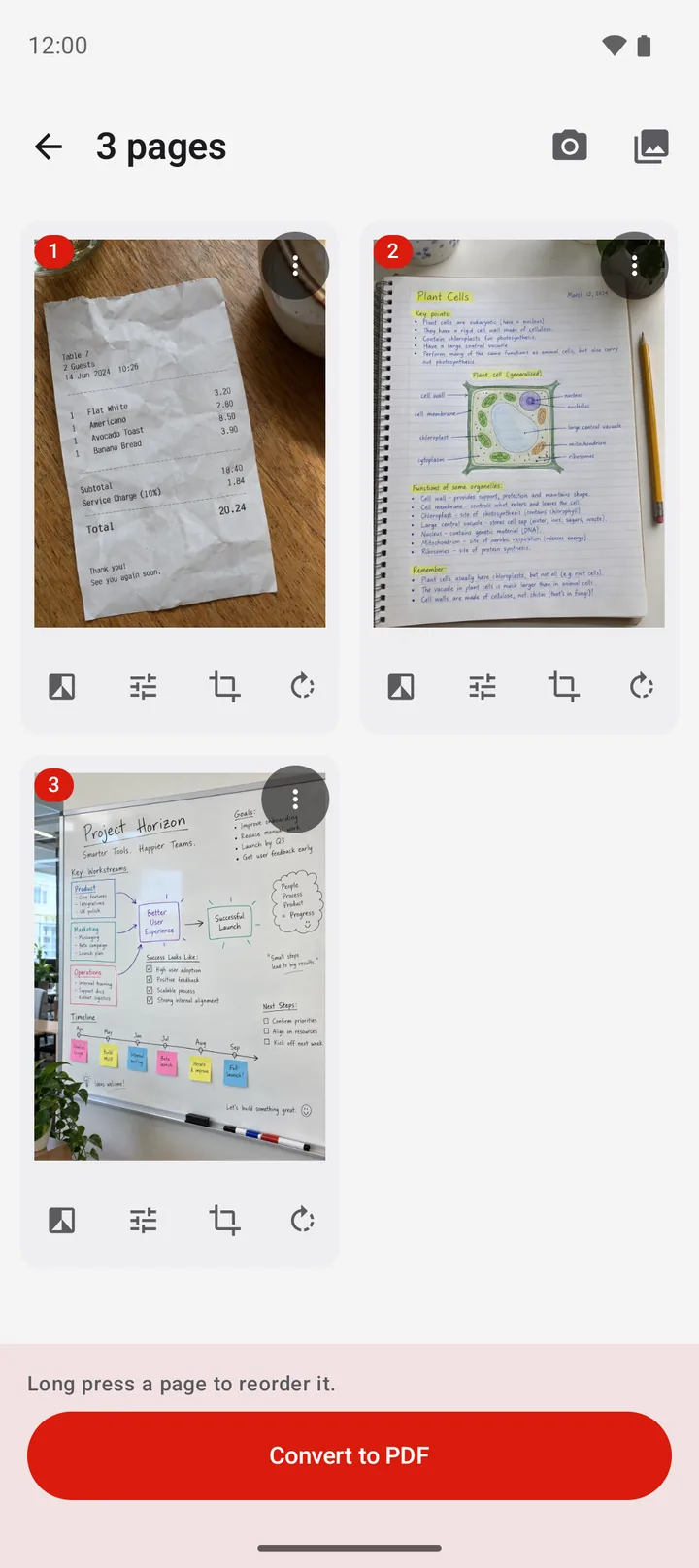
PDFriend is made for one job first: many images into one PDF. Pick up to 100 images from the gallery, set the order, then choose the page size, the margin, the image quality and 1, 2 or 4 images on each page. It reads JPG, PNG, HEIC and WebP.
It also scans paper, signs, merges, splits, compresses and locks a PDF. The app makes every PDF on the phone and has no account. It shows ads. PDFriend Pro removes them and adds text recognition and a size limit for Compress. It needs Android 9 or later, iOS 26 or later (iPhone). PDFriend on Google Play and on the App Store.
Adobe Scan
Adobe Scan is a document scanner first. It can turn camera-roll photos into PDFs, but it saves every scan to Adobe Document Cloud, and its listing puts "combine scans into one file" and OCR beyond 5 pages under the subscription. It states no page size choice. Adobe Scan on Google Play.
CamScanner
CamScanner is a large scanner app with OCR, export to Word and TXT, printing and fax. Google Play shows the "Contains ads" label, the listing puts unlimited access to all features in a weekly to yearly subscription, and you sign up to sync. Read CamScanner vs Adobe Scan. CamScanner on Google Play.
Genius Scan
Genius Scan is a scanner for paper. Its listing states on-device processing, PDF encryption and a searchable PDF. It names no page size choice, and no tool to put many gallery images in one PDF. Genius Scan on Google Play.
iLovePDF
iLovePDF is the app of a web PDF service. It names JPG to PDF, Office conversion, merge, split and compress. The listing puts unlimited use in Premium, a monthly or yearly subscription, and does not state where it processes your files. iLovePDF on Google Play.
Image to PDF - PDF Maker
This app from Simple Design Ltd. converts images to PDF and states that it makes the files locally. Google Play shows the "Contains ads" label, it names no page size choice, and on Android 11 and later it asks for All files access to your storage. Image to PDF - PDF Maker on Google Play.
Smallpdf
Smallpdf is the app of a web PDF service. It uploads your files and deletes them 1 hour after processing, and without PRO it allows 1 tool task each day. Smallpdf on Google Play.
What should a JPG to PDF app do?
Check these five points before you install an app. PDFriend meets each one.
- Take many images at once. Gallery images need an app that takes them all and sets the order. PDFriend takes up to 100 in one pick, and Smart Scan handles paper too.
- Keep the file on the phone. An ID card, a contract or a medical letter should not go to a server. PDFriend makes every PDF on the device.
- Make real page sizes. A form or a printer often wants A4 or Letter, not odd "photo-size" pages. PDFriend has A4, Letter, Legal, A3, A5, B4, B5 and Fit to image. See PDF page sizes.
- Need no account. An account means your files leave the phone. PDFriend has none.
- Leave no mark and no limit. PDFriend adds no watermark of its own and has no daily limit on its free tools.
Can you convert JPG to PDF without an app?
Yes, for one image. Android can print to a PDF file. Open the image in Google Photos, tap Print, select Save as PDF, then save. You get one PDF for each image, with the default page size of the print service. For 10 receipts in one file, use an app. The guide how to convert JPG to PDF on Android shows both ways step by step.
Our verdict
For JPG to PDF on Android, PDFriend wins. It is the only app in this comparison that takes up to 100 images, gives you real page sizes, keeps the file on the phone and needs no account. Install it, pick your images, and get one clean PDF in about a minute.
The comparison in numbers
- 7 apps compared, from 4 Google Play searches in the US store.
- 3 apps show the "Contains ads" label: PDFriend, CamScanner and Image to PDF - PDF Maker.
- 3 apps state that they make the files on the device: PDFriend, Genius Scan and Image to PDF - PDF Maker.
- 1 app states that it uploads files: Smallpdf, which deletes them after 1 hour.
- 1 app states a choice of page sizes: PDFriend.
- 100 images in one pick from the gallery in PDFriend, and up to 50 pages in one scan. Checked on 10 October 2026.
Questions and answers
What is the best JPG to PDF app for Android?
PDFriend, our app. It puts up to 100 gallery images in one PDF, lets you choose the page size such as A4 or Letter, makes the file on the phone, needs no account and adds no watermark of its own.
What is the best free JPG to PDF option on Android?
PDFriend makes a PDF from many images with no purchase, no daily limit and no watermark of its own. Android Print can save one image as a PDF, but only one image for each file.
Which JPG to PDF apps work without uploading my images?
PDFriend makes every PDF on the phone, with no account. Smallpdf uploads files to its servers, and Adobe Scan saves scans to Adobe Document Cloud.
Which JPG to PDF apps need an account?
PDFriend needs no account and no sign-in. CamScanner asks you to sign up to sync your documents, and Adobe Scan saves scans to Adobe Document Cloud.
Can an app put many JPG images in one PDF?
Yes. Each app in this list can make a multi-page PDF. In PDFriend, tap Image to PDF, pick up to 100 images from the gallery, set the order, tap Convert to PDF, then tap Create PDF.