
How to convert Word to PDF on iPhone and Android
To convert Word to PDF on Android, open PDFriend, tap More, then tap Word to PDF. Pick the .docx file. The app converts it on the phone and saves the PDF in Documents/ImageToPDF on Android. The text stays real, selectable text. Headings, lists, tables, pictures, links and footnotes show. Headers, footers and columns do not. The iPhone app has the same tool.
How do you convert a Word file to PDF on Android?
A school portal or a job form often asks for a PDF, but the file on your phone is a .docx from a mail. Word to PDF changes it on the phone in a few seconds. The file does not leave the phone.
-
Open the More tools sheet
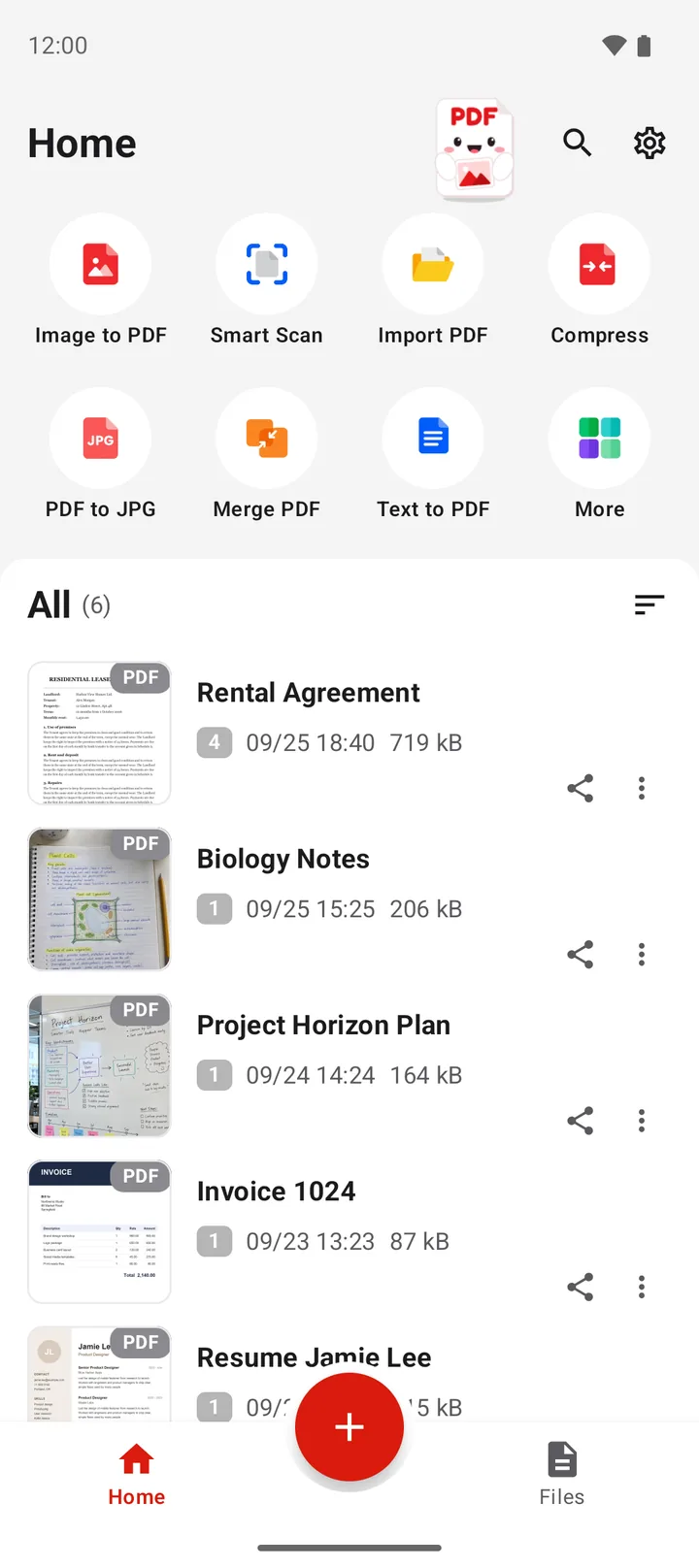
Open PDFriend and tap More, the last tile on the home screen.
-
Tap Word to PDF
In the More tools sheet, tap Word to PDF.
-
Pick the Word file
Pick the .docx file, for example from Downloads or from the files of your mail app.
-
Open or share the PDF
The app converts the file on the phone and opens the result screen. Tap Open, Share or Print. The PDF is in Documents/ImageToPDF on Android.
You can also start from another app. In a files app or a mail app, open the .docx file with PDFriend, or share it to PDFriend. The file opens in the Office Reader. Tap Save as PDF there. Read how to open DOCX, XLSX and PPTX files on Android.
What does the PDF keep from the Word file?
The app reads the parts of the Word file and lays them out on PDF pages. Most documents, such as a letter, a CV or homework, come out as you expect. Check a complex layout before you send it.
| Part of the Word file | In the PDF |
|---|---|
| Body text | Yes, as real text that you can select and search |
| Headings, bold, italic, lists | Yes |
| Tables | Yes, also with merged cells |
| Pictures | Yes. A floating picture shows in the line of the text. |
| Links | Yes |
| Footnotes and endnotes | Yes, at the end of the document |
| Page breaks | Yes |
| Page size and margins | The size and margins of the Word file |
| Headers and footers, page numbers | No |
| Columns | No, the text shows in one column |
| Comments | No |
Tip: if a page number or a letterhead in the header is important, put that text in the body of the document before you convert it.
Can you convert an old .doc file?
No. PDFriend reads the .docx format, which Word uses since 2007. A .doc file from an older version of Word does not open. The app shows: "This is an old Office file (.doc, .xls or .ppt). Save it as .docx, .xlsx or .pptx, then try again."
Ask the sender for a .docx file, or open the file in a word processor on a computer and save it as .docx. A file with a password does not convert either. Remove the password first, in the app that made the file.
Are there other ways to convert Word to PDF on a phone?
Yes. A word processor app, such as Google Docs, can save a document as a PDF too. It is a good choice when you also want to edit the text first. PDFriend is the faster choice when you only need the PDF, and when the file must stay on the phone.
To make a PDF from text without a Word file, use Text to PDF. Read how to convert text to PDF on Android. To go the other way, read how to convert a PDF to Word on Android.
Word to PDF in numbers
- Input: Word files in the .docx format. Not .doc, .odt or .rtf.
- Page size: the page size of the Word file. A file without one gets A4 (210 x 297 mm, 595 x 842 points) with 2.54 cm (1 inch) margins.
- Text: real text. A PDF search and a copy find it.
- File name: the name of the Word file. "report.docx" gives "report.pdf".
- Folder: Documents/ImageToPDF on Android 10 and later.
- Android version: Android 9 or later, iOS 26 or later (iPhone). PDFriend version 1.0.4 or later.
- Upload: none. The conversion runs on the phone.
How do you convert Word to PDF on iPhone?
PDFriend is also an iPhone app (iOS 26 and later). Tap More, then tap Word to PDF and pick the .docx file. The app converts it on the phone. The PDF goes to the folder of the app. In the Files app, open On My iPhone > PDFriend.
Questions and answers
How do I convert a Word document to PDF on my Android phone?
Open PDFriend, tap More, then tap Word to PDF. Pick the .docx file. The app converts it on the phone and saves the PDF in Documents/ImageToPDF on Android. The PDF gets the name of the Word file.
Can I select and copy the text in the PDF?
Yes. The text stays real text, not a picture of text. You can select it, copy it and find words with a PDF search.
Can I convert an old .doc file?
No. PDFriend opens only the newer .docx format. For a .doc file, the app says: "This is an old Office file (.doc, .xls or .ppt). Save it as .docx, .xlsx or .pptx, then try again." Open the file in a word processor on a computer and save it as .docx.
Why is the header or the footer missing in the PDF?
Word to PDF does not show headers, footers, columns and comments. Page numbers in the footer do not show either. The body text, headings, lists, tables, pictures, links and footnotes show.
Does the app upload my Word file?
No. PDFriend converts the file on your phone. It does not upload the file, and it needs no account.
Can I convert a Word file that has a password?
No. The app says: "This file has a password. Remove the password, then try again." Remove the password in the app that made the file, then convert it.