
Pick your images
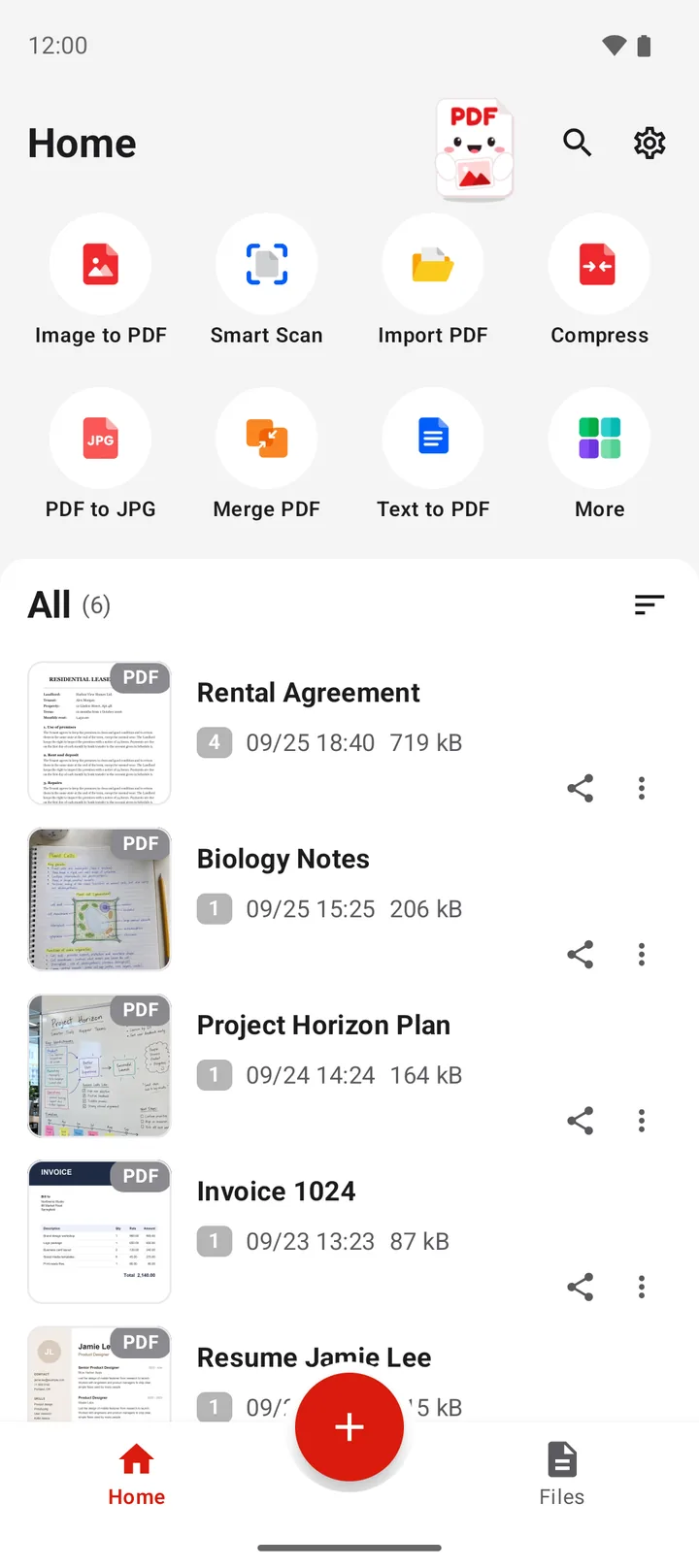
Tap Image to PDF and pick JPG, PNG or other images. Or take a photo, or scan paper with Smart Scan.
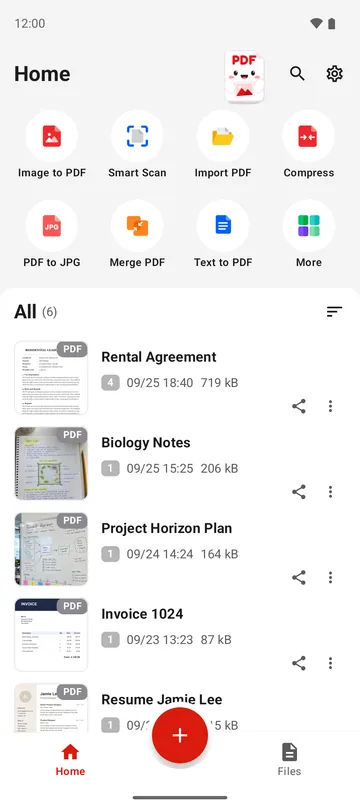
PDFriend is an Android app that turns JPG images, photos and paper documents into PDF files on your phone. Scan paper, crop and clean each page, then sign, merge, compress or lock the result.
With PDFriend, it takes three steps. The app makes the PDF on your phone, so it works without an internet connection.
Tap Image to PDF and pick JPG, PNG or other images. Or take a photo, or scan paper with Smart Scan.
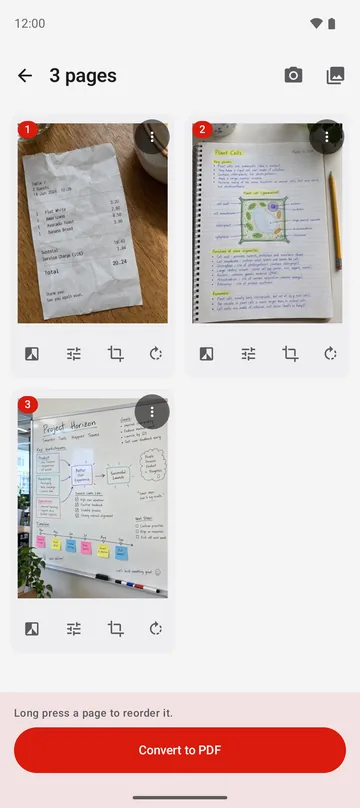
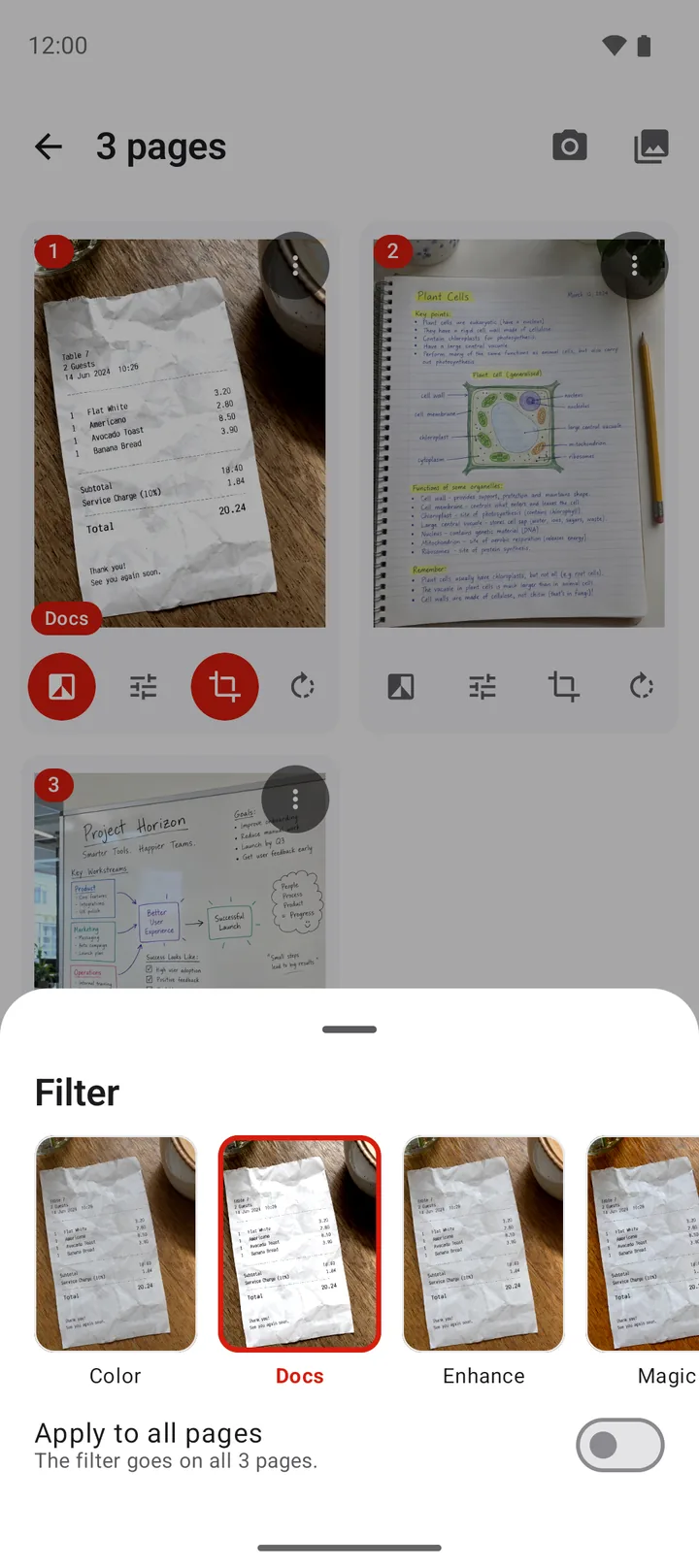
Crop, rotate and clean each page with a filter. Long press a page to change the order.
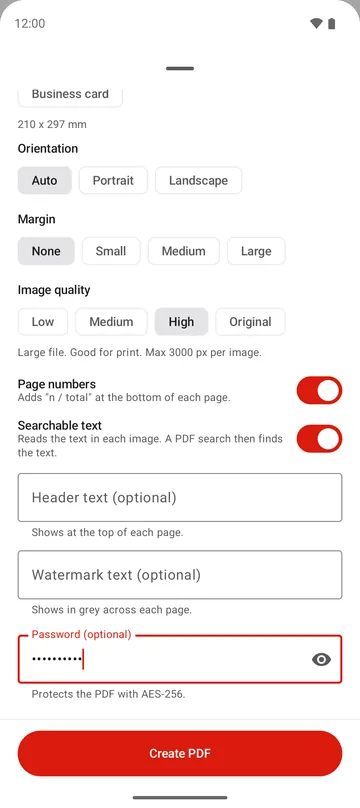
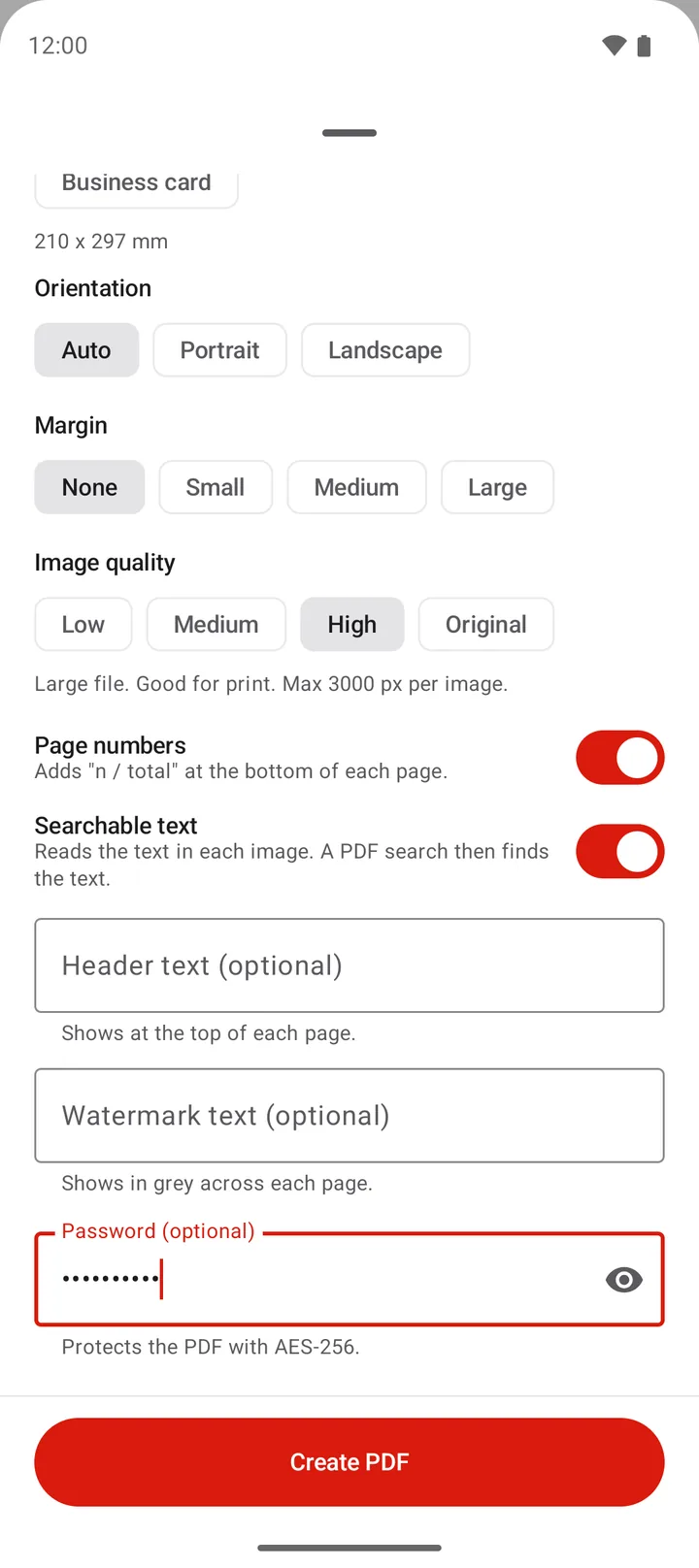
Choose the page size, the margin and the quality. Add page numbers or a password. Tap Create PDF.
Make a PDF from images, paper, text or a web page. Then merge, compress, lock or turn it back into images.
Pick JPG, PNG and other images from the gallery or the files. Get one PDF.
GuideTake a photo and turn it into a PDF page at once.
GuideThe scanner finds the edges of the paper. Scan up to 50 pages at a time.
GuideScan the front and the back. Both sides go on one PDF page.
GuideType or paste text. The PDF keeps real text that you can select.
GuideType a web address. The app saves the page as a PDF with selectable text.
GuideSave each page of a PDF as a JPG image in your gallery.
GuideBring a PDF from another app or folder into your PDFriend list.
GuideJoin two or more PDF files into one, in the order that you choose.
GuideMake a large PDF smaller for email and chat. Three levels.
GuideSave a copy of a PDF with a password. The app uses AES-256.
GuideType the password one time. The app saves a copy without it.
GuideSmart Scan finds the edges of the paper and straightens the page. Then pick a filter that makes the text easy to read.
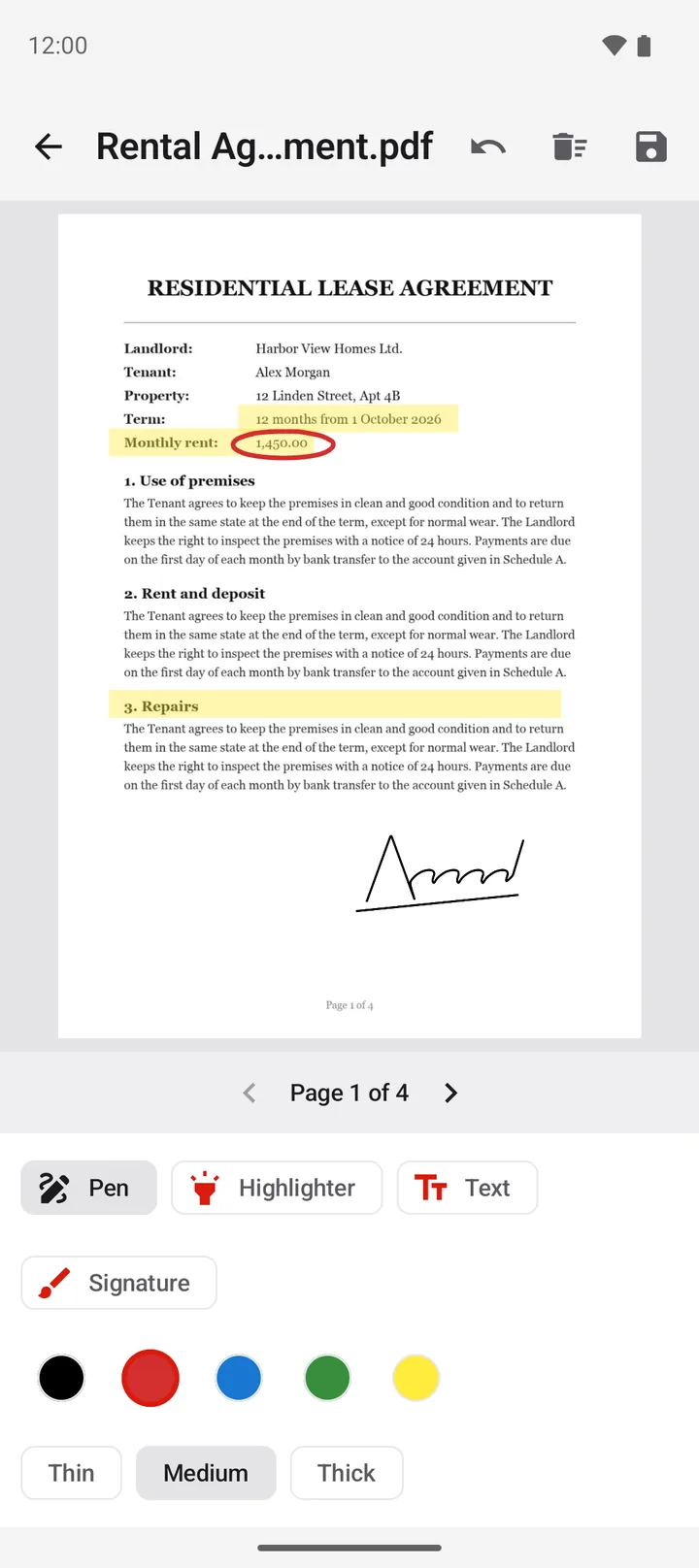
Draw your signature one time. PDFriend keeps it on your phone, so you can put it on the next contract in seconds.
Set the page size before you convert. Add page numbers, a watermark or a password in the same step.
Choose Small, Medium or Light reduction. PDFriend makes the photos inside the PDF smaller and saves a new copy. Your original file stays the same.
PDFriend makes every PDF on your phone. Your photos, your contracts and your ID cards do not go to a server.
Short, exact answers for the PDF tasks that people do on a phone every day.
Two ways: the built-in print option, and an app that puts many JPG images in one PDF.
Read the guide image to pdfTurn any image on your phone into a PDF: JPG, PNG, screenshots and downloaded pictures.
Read the guide photo to pdfPick the photos, set the order, choose 1, 2 or 4 photos on each page, then save one file.
Read the guide scan to pdfLet the scanner find the edges of the paper, clean the page with a filter, then save a PDF.
Read the guide merge pdfJoin two or more PDF files into one, in the order that you choose.
Read the guide compress pdfWhy a PDF is large, which compress level to choose, and how to make small files from the start.
Read the guideOpen PDFriend and tap Image to PDF. Pick one or more JPG images and set the order. Tap Convert to PDF, then tap Create PDF. The app saves the PDF in Documents/ImageToPDF on your phone.
Yes. Pick all the photos at the same time. Each photo becomes one page, or you can put 2 or 4 photos on each page. Long press a page to change the order.
No. PDFriend makes every PDF on your phone. Your images, PDF files, text and signature do not go to a server.
No. PDFriend has no account and no sign-in. Open the app and start.
PDFriend makes pages in A3, A4, A5, B4, B5, Letter, Legal, Executive and business card size. It can also make each page the same size as its image. You can choose portrait, landscape or auto.
Yes. In the editor, tap Extract text. The app reads the text on the page on your phone, then you can copy it. It reads languages that use the Latin alphabet, for example English, German and French.
PDFriend saves new PDF files in the Documents/ImageToPDF folder on your phone. Images from PDF to JPG go to Pictures/ImageToPDF. You can also see every file in the Files tab of the app.
PDFriend needs Android 9 or later. It works on Android phones and tablets.
Get PDFriend on Google Play. It needs Android 9 or later.
Get it onGoogle Play