
How to merge PDF files on Android
Use a PDF app with a merge tool. In PDFriend, tap Merge PDF and select 2 or more PDF files. In the Merge order sheet, drag the files into the correct order, then tap the Merge button. The app saves one new PDF. A file with a password must be unlocked first.
How do you merge PDF files into one on Android?
The Merge PDF tool of PDFriend joins 2 or more PDF files into one file. You set the order before the merge starts. The app merges the files on your phone, so they do not go to a server.
-
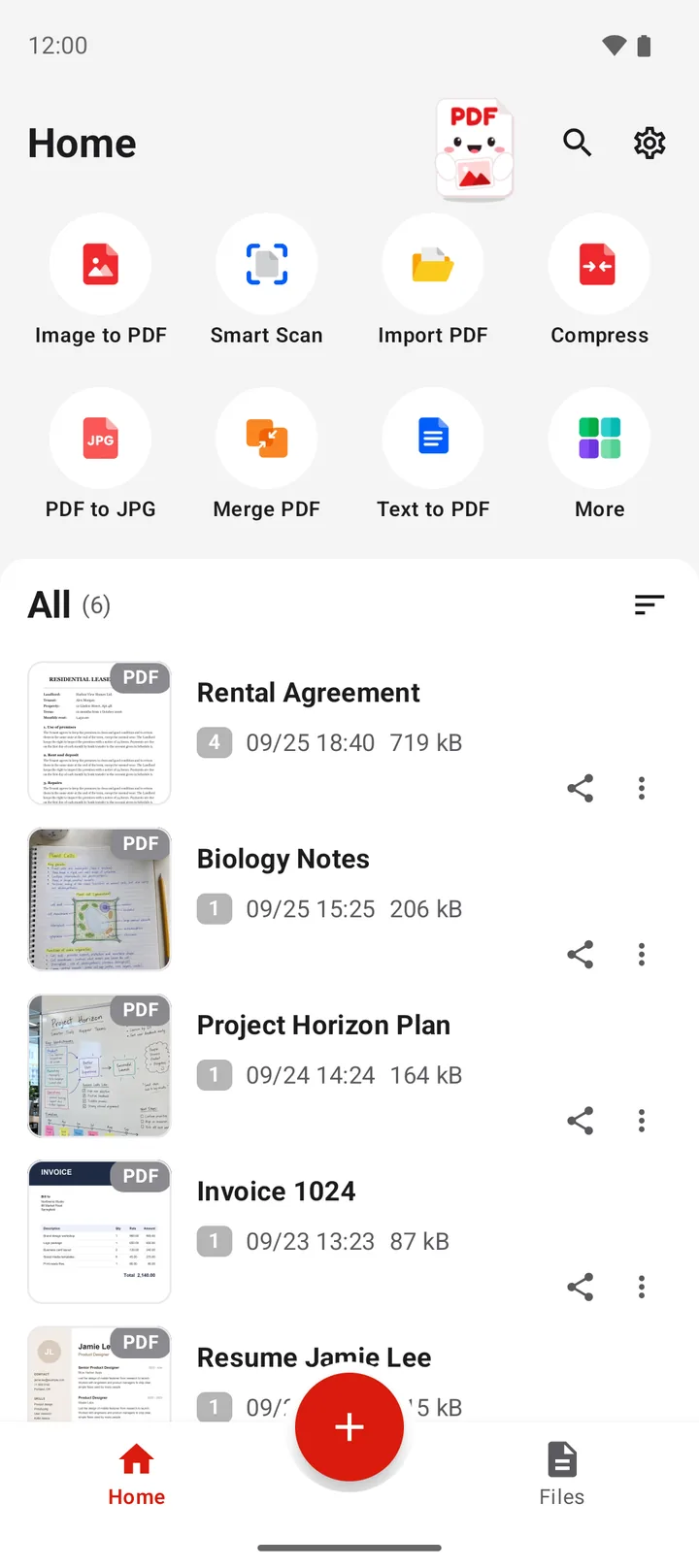
Open Merge PDF
Open PDFriend and tap the Merge PDF tool on the home screen.
-
Pick the PDF files
Select 2 or more PDF files in the file picker. The Merge order sheet opens.
-
Set the order
Drag a file to change its place. The first file in the list goes first in the new PDF.
-
Remove a file if necessary
To take a file out of the merge, tap the remove button next to it. At least 2 files must stay.
-
Merge the files
Tap the Merge button at the bottom of the sheet. The app saves one new PDF in Documents/ImageToPDF.
The file picker does not keep the order in which you tap the files. For this reason, always check the list in the Merge order sheet before you merge. The original files do not change.
Tip: you can also merge files that are already in the app. In the file list, long press a file to select more than one. Then tap the merge button.
What do you do if a PDF has a password?
PDFriend cannot merge a PDF that has a password. The app shows a message: "One of the files has a password. Remove the password first." Use the Unlock tool to save a copy without the password. You must know the correct password.
-
Open Unlock
Tap More on the home screen. In the More tools sheet, tap Unlock.
-
Pick the locked PDF
Select the PDF that has a password.
-
Type the password
Type the correct password, then tap Remove. The app saves a copy without the password.
Then merge the unlocked copy. To protect the merged PDF, add a password again with the Lock tool. To learn more, read How to put a password on a PDF.
How do you merge only some pages of a PDF?
The merge tool always adds all the pages of each file. To add only some pages, first make a new PDF with only these pages.
- Open the PDF in the PDFriend viewer.
- Open Extract pages.
- Type the pages to keep, for example 1-3, 5. Tap Extract. The app saves these pages as a new PDF.
- Merge the new PDF with the other files.
Note: a merged PDF with many scans or photos can be large. To make it smaller, read How to make a PDF smaller on Android.
Questions and answers
How do I merge PDF files on Android?
Use a PDF app with a merge tool. In PDFriend, tap Merge PDF, select 2 or more PDF files, drag the files into the correct order, then tap the Merge button. The app saves one new PDF.
How do I change the order of the files before I merge?
In the Merge order sheet of PDFriend, drag a file to a new place. The first file in the list becomes the first part of the new PDF.
Why can I not merge a PDF that has a password?
The app cannot read the pages of a locked PDF. Remove the password first with the Unlock tool. You must type the correct password. Then merge the unlocked copy.
Can I merge only some pages of a PDF?
Yes, in two steps. Open the PDF in the PDFriend viewer, use Extract pages to save only the pages that you need as a new PDF, then merge the new PDF.
Do the original files change when I merge?
No. PDFriend makes a new PDF from the files. The original files stay as they are.
Can I merge files that I already have in the app?
Yes. In the file list, long press a file to select more than one. Then tap the merge button. The Merge order sheet opens.