
How to convert JPG to PDF on Android
For one image, open it in Google Photos, tap Print, select Save as PDF and save. For many JPG images in one PDF, use an app such as PDFriend: tap Image to PDF, pick the images, put them in order, tap Convert to PDF, then tap Create PDF.
How do you convert one JPG to PDF without an app?
Android can print any image to a PDF file. This method needs no extra app. It makes one PDF from one image, with the default page size of the print service.
-
Open the image
Open the JPG image in Google Photos or in your gallery app.
-
Open the print command
Tap the More menu (three dots), then tap Print. If you do not see Print, tap Share and look for Print there.
-
Choose Save as PDF
At the top of the print screen, open the printer list and select Save as PDF.
-
Save the file
Tap the round PDF button. Choose a folder and a file name, then tap Save.
Limit: the print command makes one PDF for one image. To join 10 receipts or all the pages of a contract in one file, use the next method.
How do you put many JPG images into one PDF?
A PDF app can take many images at the same time and give you one file. PDFriend makes the PDF on your phone, so your images do not go to a server. These steps take about one minute.
-
Open Image to PDF
Open PDFriend and tap the Image to PDF tool on the home screen.
-
Pick the JPG images
Select all the images that you want in the PDF. You can pick from the gallery or from the files.
-
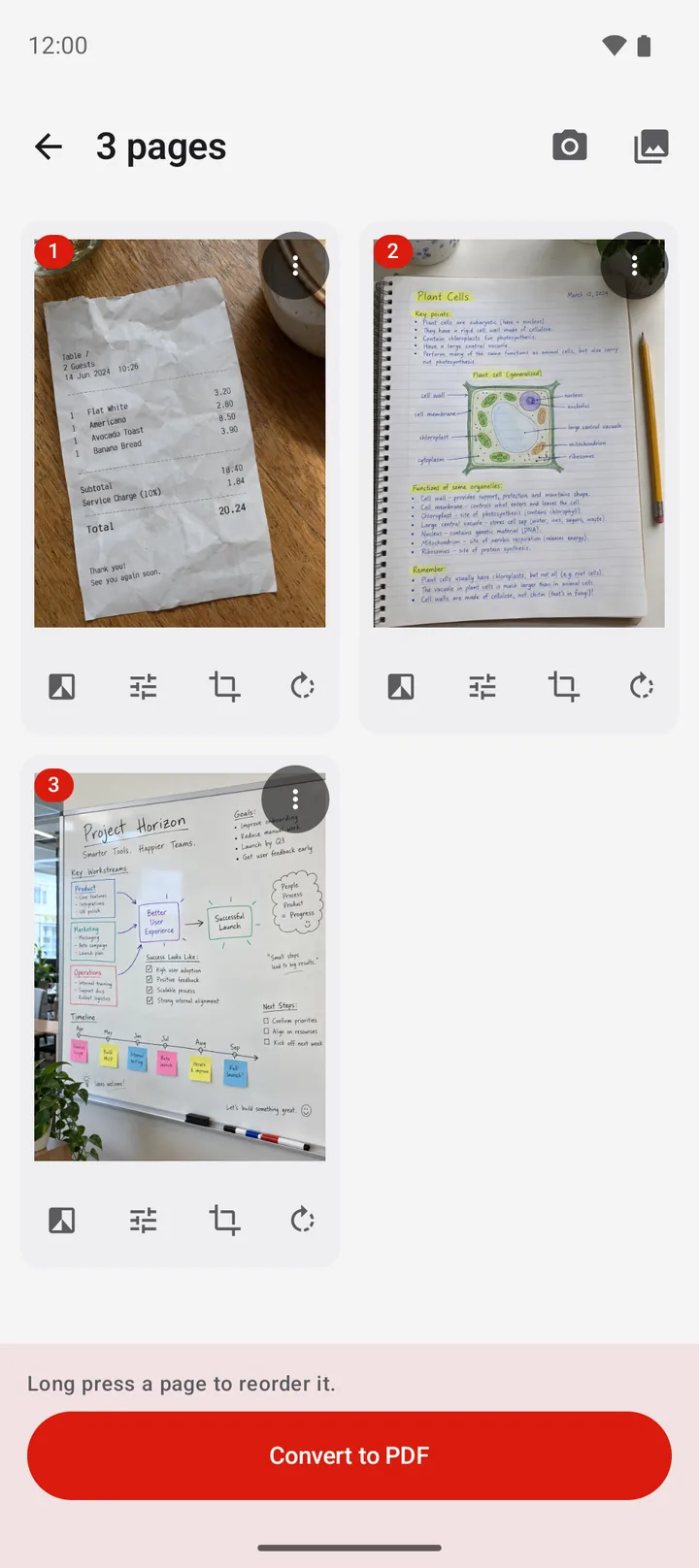
Put the pages in order
Long press a page and move it. Crop, rotate or add a filter to a page if necessary.
-
Tap Convert to PDF
Tap Convert to PDF. The PDF options sheet opens.
-
Choose the options and create
Choose the page size, for example A4 or Letter, the margin and the image quality. Tap Create PDF. The app saves the file in Documents/ImageToPDF.
Which PDF settings should you choose?
The right settings depend on what you do with the PDF. Use this table as a start.
| Use | Page size | Quality | Images per page |
|---|---|---|---|
| Email or a chat app | A4 or Letter | Medium (max 2000 px) | 1 |
| Print on paper | A4 (most countries) or Letter (US, Canada) | High (max 3000 px) | 1 |
| Receipts for an expense report | A4 or Letter | Medium | 2 or 4 |
| Keep the full photo quality | Fit to image | Original | 1 |
Fit to image makes each page the same shape as its photo, so no white border shows. A4 and Letter add a white page around the photo, which is better for printing. To learn the exact sizes, read PDF page sizes: A4, Letter, Legal and more.
Tip: to send a PDF by email, choose Medium quality. A PDF of 10 phone photos at Original quality can be too large for some email services.
Questions and answers
Can Android convert JPG to PDF without an app?
Yes, for one image at a time. Open the image, tap Print, select Save as PDF as the printer, then save. For many images in one PDF, use a PDF app.
How do I put many JPG images in one PDF?
Use an app that accepts more than one image. In PDFriend, tap Image to PDF, select all the images, set the order, tap Convert to PDF, then tap Create PDF. The result is one PDF file.
Is JPEG to PDF the same as JPG to PDF?
Yes. JPG and JPEG are two names for the same image format. The file extension changes, but the image is the same. The steps in this guide work for .jpg and .jpeg files.
Does converting JPG to PDF lower the quality?
It depends on the quality setting. In PDFriend, the Original setting keeps the best quality, up to 4096 px on the longest side. Low, Medium and High make the file smaller.
Can I convert PNG to PDF the same way?
Yes. The same steps work for PNG and other image files. PDFriend accepts every image that your phone can open.
Where is the PDF saved on Android?
With Print to PDF, the file goes to the folder that you choose, often Downloads. PDFriend saves the file in Documents/ImageToPDF.