
How to scan a document to PDF with your Android phone
Use a scanner that finds the edges of the paper. In PDFriend, tap Smart Scan, hold the phone above the paper and scan each page, up to 50 pages. In the editor, add the Docs, Magic or B&W filter. Then tap Convert to PDF and Create PDF.
How do you scan a document to PDF with Smart Scan?
Smart Scan in PDFriend uses the Google document scanner. The scanner finds the four edges of the paper and makes the page straight. It runs on the device, so your pages do not go to a server.
-
Open Smart Scan
Open PDFriend and tap the Smart Scan tool on the home screen. The Google document scanner opens.
-
Scan the first page
Hold the phone above the paper. The scanner finds the edges of the paper and takes the photo.
-
Scan the other pages
Add the next pages in the scanner. One scan can hold up to 50 pages. Then finish the scan.
-
Clean the pages with a filter
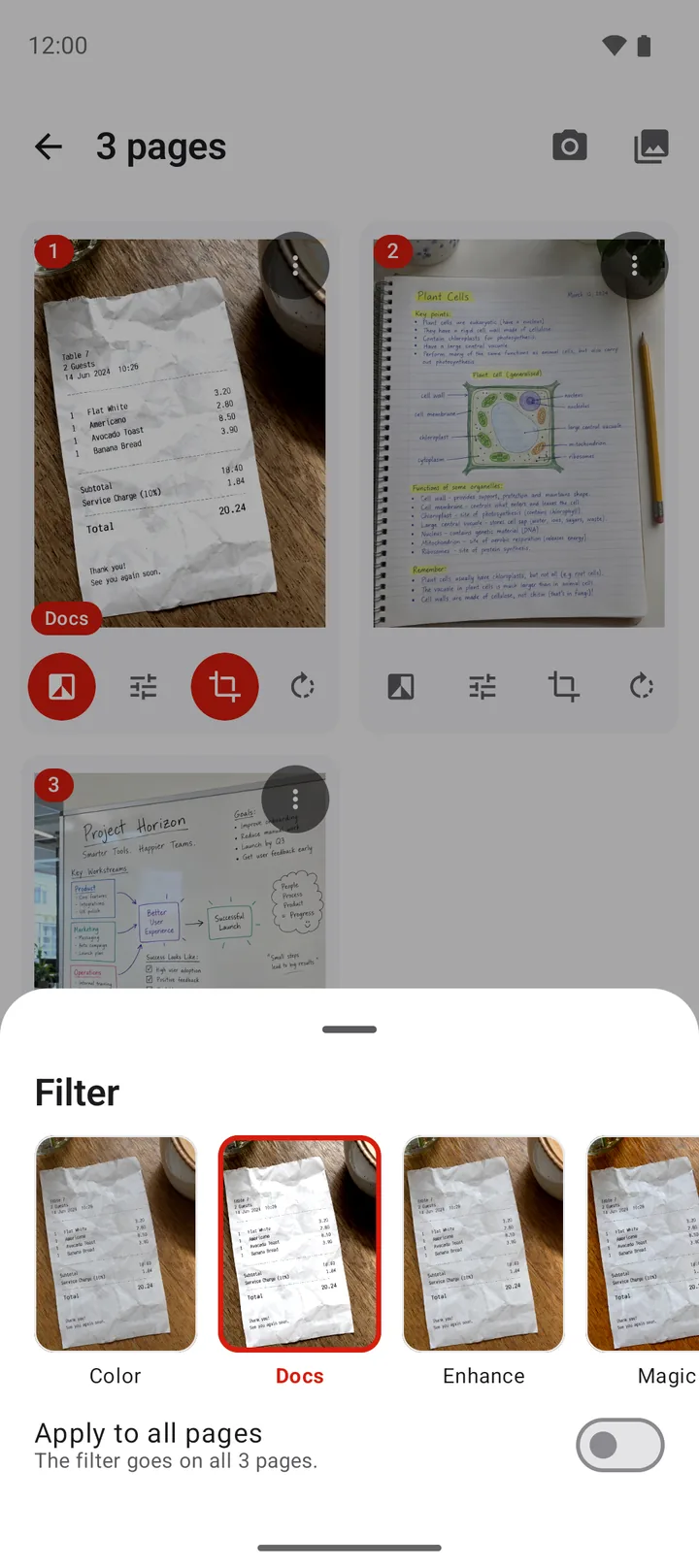
In the editor, open the filter of a page. Select Docs, Magic or B&W. Turn on Apply to all pages to use the filter on every page.
-
Tap Convert to PDF
Tap Convert to PDF. The PDF options sheet opens.
-
Create the PDF
Choose the page size, for example A4 or Letter. Tap Create PDF. The app saves the file in Documents/ImageToPDF.
Note: the first scan downloads the scanner, so it needs an internet connection. The next scans work without a connection.
Before you convert, you can also crop, rotate or reorder the pages. Long press a page to move it.
Which filter should you use for a scan?
A filter makes the paper look clean and the text easy to read. The filters of PDFriend are in the editor. Tap the filter button of a page to see a preview of each filter.
| Filter | What it does | Good for |
|---|---|---|
| Docs | Makes the paper white and the ink dark. Makes the colors weaker. | Printed letters, forms, contracts |
| Magic | Makes the colors stronger and increases the contrast. | Notes with color, pages with photos |
| B&W | Removes the colors and gives a very high contrast. Light gray becomes white, dark gray becomes black. | Text pages that you print |
| Color | Keeps the original photo. | Photos, drawings |
How do you get a clear scan of a document?
The scanner can only find the edges when it sees all the paper. These tips give a sharp and straight page.
- Use good light. Daylight from a window is best. Do not stand between the lamp and the paper, because your shadow falls on the page.
- Use a dark surface. White paper on a dark table gives strong edges. The scanner then finds the paper more easily.
- Make the paper flat. Unfold the page and press the folds down. Put a book on a curled edge if necessary.
- Hold the phone parallel to the paper. Keep all four corners in the camera view.
- Hold the phone still. A small movement makes the text soft.
- Do not use a flash on glossy paper. The flash makes a bright spot on the page.
Tip: to send a scan by email, choose Medium image quality in the PDF options. A scan of many pages at Original quality can be too large for some email services.
Can you scan a document without a scanner app?
Yes. The Google Drive app for Android has a scan option. Open Google Drive, tap the + button, then tap Scan. Google Drive saves the scan as a PDF in your Drive storage.
Use a scanner app when you want more control. PDFriend saves the PDF on your phone, not in cloud storage. It also lets you set the page size, the margin, the image quality and a password.
Questions and answers
How do I scan a document to PDF on Android?
Use a scanner app. In PDFriend, tap Smart Scan, hold the phone above the paper, scan each page, add a filter, tap Convert to PDF, then tap Create PDF.
Can I scan a document on Android without a scanner app?
Yes. The Google Drive app for Android has a Scan option on the + button. It saves the scan as a PDF in Google Drive.
How many pages can I scan into one PDF?
Smart Scan in PDFriend takes up to 50 pages in one scan. To add more pages, use Add pages in the editor before you convert.
Which filter makes a scan look like a photocopy?
B&W (black and white) removes the colors and gives a very high contrast, so the paper looks white and the text looks black. Docs also makes the paper white and the ink dark, but it keeps some color. Try each filter on one page, then apply the best one to all pages.
Why does the first scan need an internet connection?
Smart Scan uses the Google document scanner in Google Play services. The first scan downloads the scanner. After that, the scanner runs on the device.
Can I scan a photo that is already in my gallery?
Yes. The Smart Scan scanner can import images from the gallery. It then finds the edges of the paper in the image.