
How to convert an image to PDF on Android
To convert an image to PDF on Android, open PDFriend and tap Image to PDF. Select the images, tap Convert to PDF, then tap Create PDF. For one image only, you can also open it in Google Photos, tap Print and select Save as PDF.
How do you convert an image to PDF on Android?
A PDF app can convert any image on your phone to a PDF page. It also puts many images into one PDF file. PDFriend makes the PDF on your phone, so your images do not go to a server. The steps take about one minute.
-
Open Image to PDF
Open PDFriend and tap the Image to PDF tool on the home screen.
-
Select the images
The Android picker opens. Select one image or many images. You can select up to 100 images at a time.
-
Check the pages
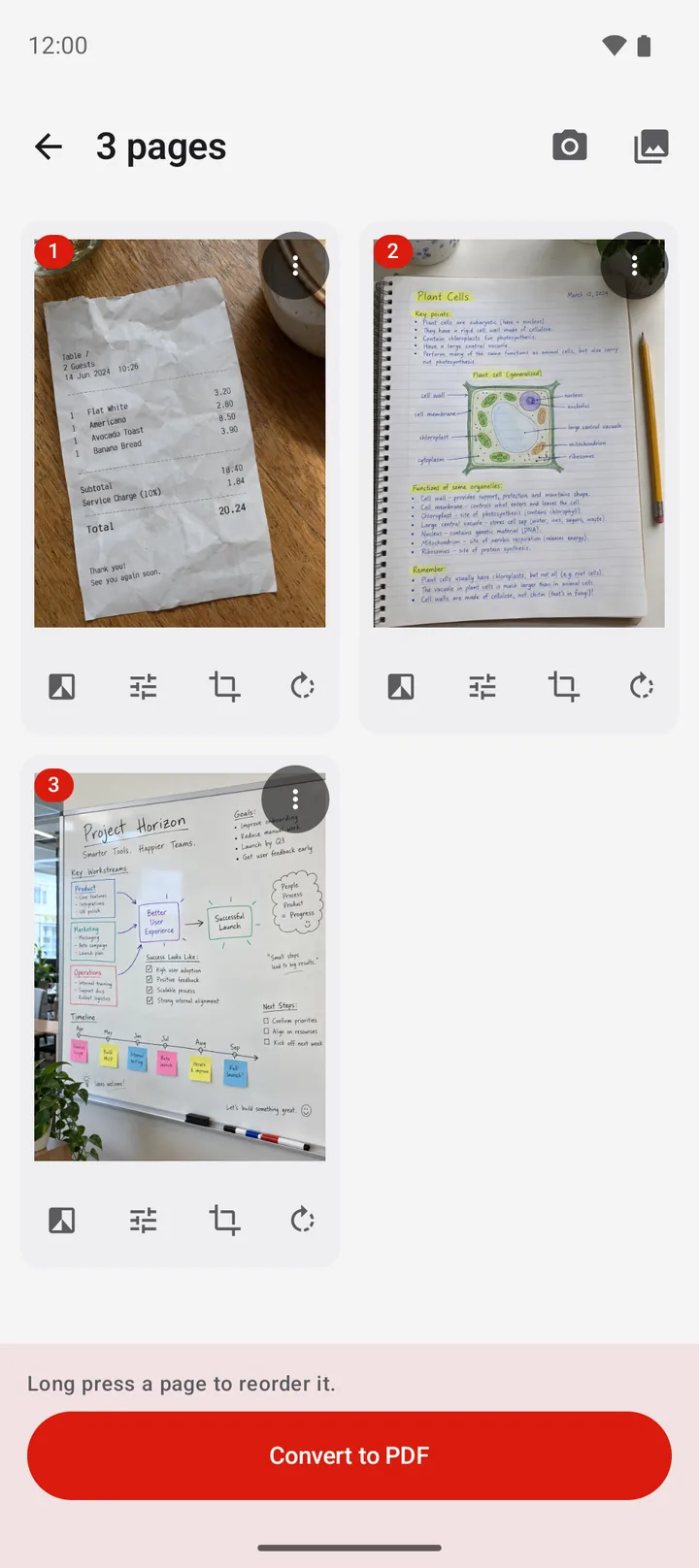
Each image is one page in the editor. Long press a page to move it. Crop or rotate a page if necessary.
-
Tap Convert to PDF
Tap Convert to PDF. The PDF options sheet opens.
-
Choose the options and create
Choose the page size, the margin and the image quality. Tap Create PDF. The app saves the file in Documents/ImageToPDF.
This guide is for all types of images. For a guide about one file type, read how to convert JPG to PDF or how to convert PNG to PDF.
Where do you find the image on your phone?
The Android picker shows the images that are saved on your phone, with the newest image first. The table tells you what to do for each source.
| Image | What to do |
|---|---|
| A photo from the camera | Select it in the picker. It shows with your other photos. |
| A screenshot | Select it in the picker. A new screenshot is near the top. |
| A picture from a web page | Download the picture in the browser first. Then select it in the picker. |
| An image in a chat app | Save the image to the phone in the chat app first. Then select it in the picker. |
| An image in the file manager | Look for it in the picker by its date. The picker also shows the images in the shared folders of the phone, for example Download. |
| A paper document | Do not take a normal photo. Use Smart Scan, which finds the edges of the paper. |
Note: PDFriend does not show in the Share menu of other apps. Open PDFriend first, then select the image in the picker.
To scan a paper document, read how to scan a document to PDF.
Can you convert an image to PDF without an app?
Yes, for one image. Android can print an image to a PDF file, and Google Photos has a Print command. This method needs no extra app.
-
Open the image
Open the image in Google Photos.
-
Open the print command
Tap the More menu (three dots), then tap Print. If you do not see Print, tap Share and look for Print there.
-
Choose Save as PDF
At the top of the print screen, open the printer list and select Save as PDF.
-
Save the file
Tap the round PDF button. Choose a folder and a file name, then tap Save.
Limit: this method makes one PDF from one image. You cannot put 10 images into one file with it. You cannot set the page order, the margin or the image quality.
Which PDF settings should you choose for each image?
The best settings depend on the type of image. Use this table as a start. You find all the settings in the PDF options sheet.
| Image | Page size | Image quality |
|---|---|---|
| A photo from the camera | A4 or Letter | Medium (max 2000 px) for email, High (max 3000 px) for print |
| A screenshot or a chart | Fit to image | Original |
| A downloaded picture | Fit to image | High |
| Many small images, for example receipts | A4 or Letter, with 2 or 4 images per page | Medium |
Fit to image makes each page the same shape as its image, so no white border shows. A4 and Letter put the image on a standard page, which is better for printing. To put many photos on one page, read how to convert a photo to PDF.
Tip: to send the PDF by email, choose Medium quality. Original quality keeps the full image, so a PDF with many images can become too large for an email.
Questions and answers
How do I convert an image to PDF on my Android phone?
Open PDFriend and tap Image to PDF. Select the images, tap Convert to PDF, then tap Create PDF. The app saves the PDF in Documents/ImageToPDF on your phone.
Can I convert an image to PDF without an app?
Yes, for one image. Open the image in Google Photos, tap Print, select Save as PDF as the printer, then save. To put many images in one PDF, use a PDF app.
How many images can I put in one PDF?
In PDFriend, you can select up to 100 images at a time. To add more, tap Add pages (the gallery icon at the top of the editor) and select the next images. All the pages go into one PDF.
Can I convert a screenshot to PDF?
Yes. A screenshot is an image, so the steps are the same. For sharp text, choose Original quality and the Fit to image page size.
Can I send an image from another app to PDFriend?
No. PDFriend does not show in the Share menu of other apps. Open PDFriend first, tap Image to PDF, then select the image in the picker.
Does the app upload my images to convert them?
No. PDFriend makes the PDF on your phone. The app does not upload your images or your PDF files.