
How to password protect a PDF on Android
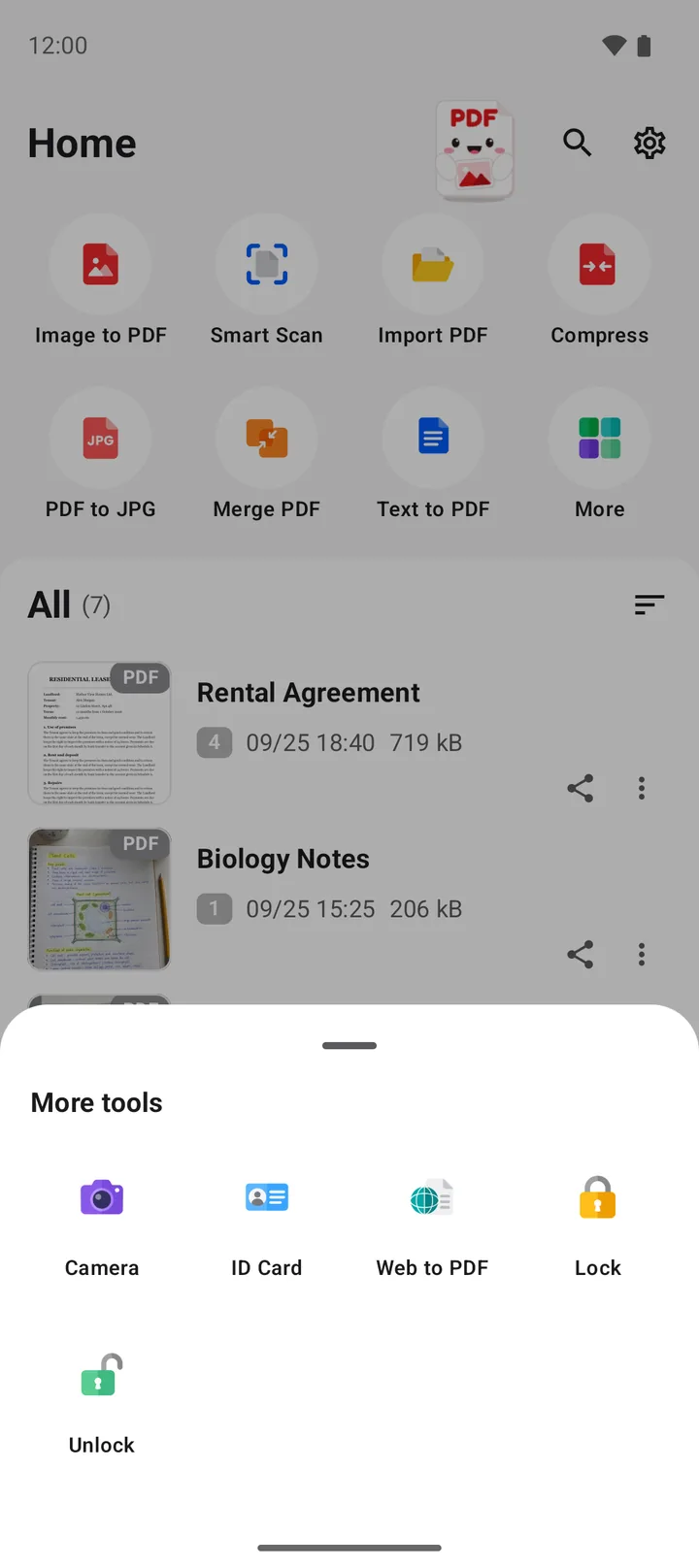
In PDFriend, tap More on the home screen, then tap Lock. Pick the PDF, type a password and tap Lock. The app saves a copy of the PDF with AES-256 encryption. To remove a password that you know, use Unlock.
How do you put a password on a PDF on Android?
The Lock tool saves a copy of a PDF with a password. The copy uses AES-256 encryption. A PDF reader asks for the password before it shows the pages. The app does the work on your phone, so the PDF does not go to a server.
-
Open the Lock tool
Open PDFriend. On the home screen, tap More, then tap Lock.
-
Pick the PDF
Select the PDF that you want to protect.
-
Type a password
Type a strong password. Tap the eye icon to see the password and check it.
-
Tap Lock
Tap Lock. The app saves a copy with "(locked)" at the end of the name. The original PDF does not change.
Warning: keep the password in a safe place. Nobody can open the file without it. PDFriend cannot recover or reset a forgotten password.
A PDF that already has a password cannot be locked again. The app shows the message "The PDF already has a password." To change the password, unlock the PDF first. Then lock the unlocked copy with the new password.
How do you add a password when you create a PDF?
You can protect a new PDF at the time that you make it. This saves one step, and no copy without a password exists.
- Make the PDF as usual, for example with Image to PDF.
- In the editor, tap Convert to PDF. The PDF options sheet opens.
- Type a password in the Password (optional) field.
- Tap Create PDF. The new PDF has AES-256 protection.
How do you remove a password from a PDF?
The Unlock tool saves a copy of a PDF without the password. You must type the correct password. Unlock does not remove a password that you do not know.
-
Open the Unlock tool
On the home screen, tap More, then tap Unlock.
-
Pick the PDF
Select the PDF that has the password.
-
Type the password
Type the correct password, then tap Remove. The app saves a copy with "(unlocked)" at the end of the name.
You can also remove the password from the file list. Tap the More menu (three dots) next to the file, then tap Remove password.
Tip: remove the password before you merge, sign or convert the PDF to JPG. These tools need a PDF without a password. You can lock the result again after.
How do you choose a strong password for a PDF?
AES-256 encryption is strong, but a short password is easy to guess. The password gives the protection, not only the encryption. Use these rules:
- Use 12 characters or more. A long password is harder to guess than a short one.
- Use 3 or 4 random words, for example "lamp river orange cloud". It is long and easy to remember.
- Do not use your name, your birthday or the name of the file.
- Do not use the same password as your email or your bank.
- Send the password in a different way from the file. For example, email the PDF and tell the password by phone.
Warning: write the password in a password manager or another safe place before you delete the original PDF. If you forget the password, the locked copy stays locked.
Questions and answers
How strong is the PDF password protection?
PDFriend protects the PDF with AES-256 encryption. The password is necessary to open the file. A long password that nobody can guess gives the best protection.
Can I remove a password from a PDF if I forgot it?
No. The Unlock tool needs the correct password. PDFriend cannot open, recover or reset a forgotten password.
Does locking a PDF change the original file?
No. Lock saves a new copy with "(locked)" at the end of the name. The original PDF stays without a password. Delete the original if you only want the protected copy.
Can I add a password when I create a new PDF?
Yes. In the PDF options sheet, type a password in the Password field before you tap Create PDF. The new PDF has AES-256 protection from the start.
Why can I not lock my PDF?
The PDF already has a password. PDFriend does not lock a PDF again. To change the password, unlock the PDF first, then lock the unlocked copy with the new password.
Can I open a locked PDF in PDFriend?
Yes. The PDF viewer asks for the password, then opens the file. To merge, convert to JPG or sign the PDF, remove the password first with Unlock.