
How to convert a PDF to JPG images on Android
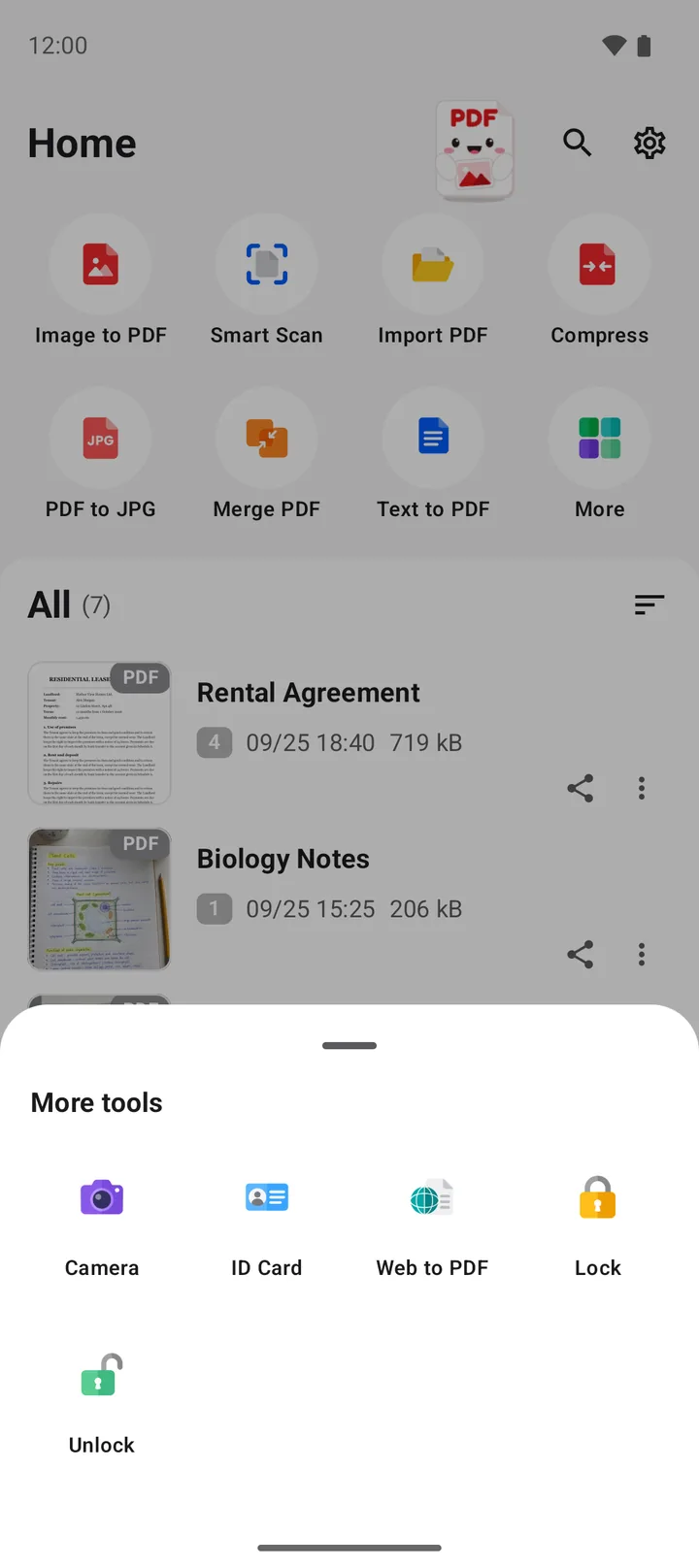
In PDFriend, tap PDF to JPG on the home screen and pick the PDF. The app saves each page as one JPG image in the Pictures/ImageToPDF folder, so the pages show in your gallery. To convert only some pages, use Extract pages first to make a smaller PDF.
How do you convert a PDF to JPG on Android?
The PDF to JPG tool turns each page of a PDF into one JPG image. A PDF with 8 pages gives 8 images. The app does the work on your phone, so the PDF does not go to a server.
-
Tap PDF to JPG
Open PDFriend and tap the PDF to JPG tool on the home screen.
-
Pick the PDF
Select the PDF file on your phone. The app starts at once.
-
Wait for the pages
The app saves each page as one JPG image. A dialog shows the number of the page that it saves.
-
Find the images
Open your gallery app. The images are in the Pictures/ImageToPDF folder, one image for each page.
Each image gets the name of the PDF and the page number, for example Report_page_1.jpg. The images stay in the order of the pages, so they are easy to find.
How do you export the pages from the PDF viewer?
If the PDF is already open in PDFriend, you do not need to go back to the home screen. The PDF viewer has the same function in its menu.
-
Open the PDF
Tap the PDF in the file list of PDFriend. The PDF viewer opens.
-
Open the More menu
Tap the More menu (three dots) at the top of the viewer.
-
Export the pages
Tap Export pages as images. The app saves each page as a JPG image in Pictures/ImageToPDF.
Note: a PDF with a password does not convert with the PDF to JPG tool. Remove the password with the Unlock tool first, then convert the unlocked copy.
How do you convert only some pages of a PDF?
The PDF to JPG tool converts every page. For a long PDF, make a smaller PDF first with only the pages that you need. Then convert the smaller PDF.
- Open the PDF in PDFriend.
- Tap the More menu (three dots), then tap Extract pages.
- Type the pages to keep, for example 1-3, 5. This keeps pages 1, 2, 3 and 5.
- Tap Extract. The app saves the pages as a new PDF. The original PDF does not change.
- Convert the new PDF with the PDF to JPG tool.
Tip: Extract pages is also useful without JPG images. Use it to send only the signed page of a contract, or only one chapter of a long document.
Questions and answers
Where does Android save the JPG images from a PDF?
PDFriend saves the images in the Pictures/ImageToPDF folder. Your gallery app shows them. Each image has the name of the PDF and the page number.
Can I convert only one page of a PDF to JPG?
The PDF to JPG tool converts every page. To get only some pages, open the PDF, tap Extract pages, type the page numbers and save a new PDF. Then convert the new PDF to JPG.
Can I convert a PDF with a password to JPG?
Remove the password first. Use the Unlock tool and type the correct password. Then convert the unlocked copy.
Does PDF to JPG change the original PDF?
No. The app reads the PDF and writes new JPG images. The PDF file stays the same.
Is the text in the JPG images still selectable?
No. A JPG image is a picture of the page. To copy text from a page, keep the PDF or use a tool that reads text from an image.