
How to convert PNG to PDF on Android
To convert PNG to PDF on Android, open PDFriend and tap Image to PDF. Select the PNG images, tap Convert to PDF, set Image quality to Original, then tap Create PDF. Screenshots, charts and logos keep sharp text and clean lines.
How do you convert PNG to PDF on Android?
Most PNG images on a phone are screenshots, charts, logos or pictures with text. These images have sharp edges, so the settings are a little different from a photo. These steps take about one minute.
-
Open Image to PDF
Open PDFriend and tap the Image to PDF tool on the home screen.
-
Select the PNG images
Select the PNG images or the screenshots in the picker. You can select up to 100 images at a time.
-
Put the pages in order
Long press a page and move it. Crop a page to remove the status bar or other parts that you do not need.
-
Tap Convert to PDF
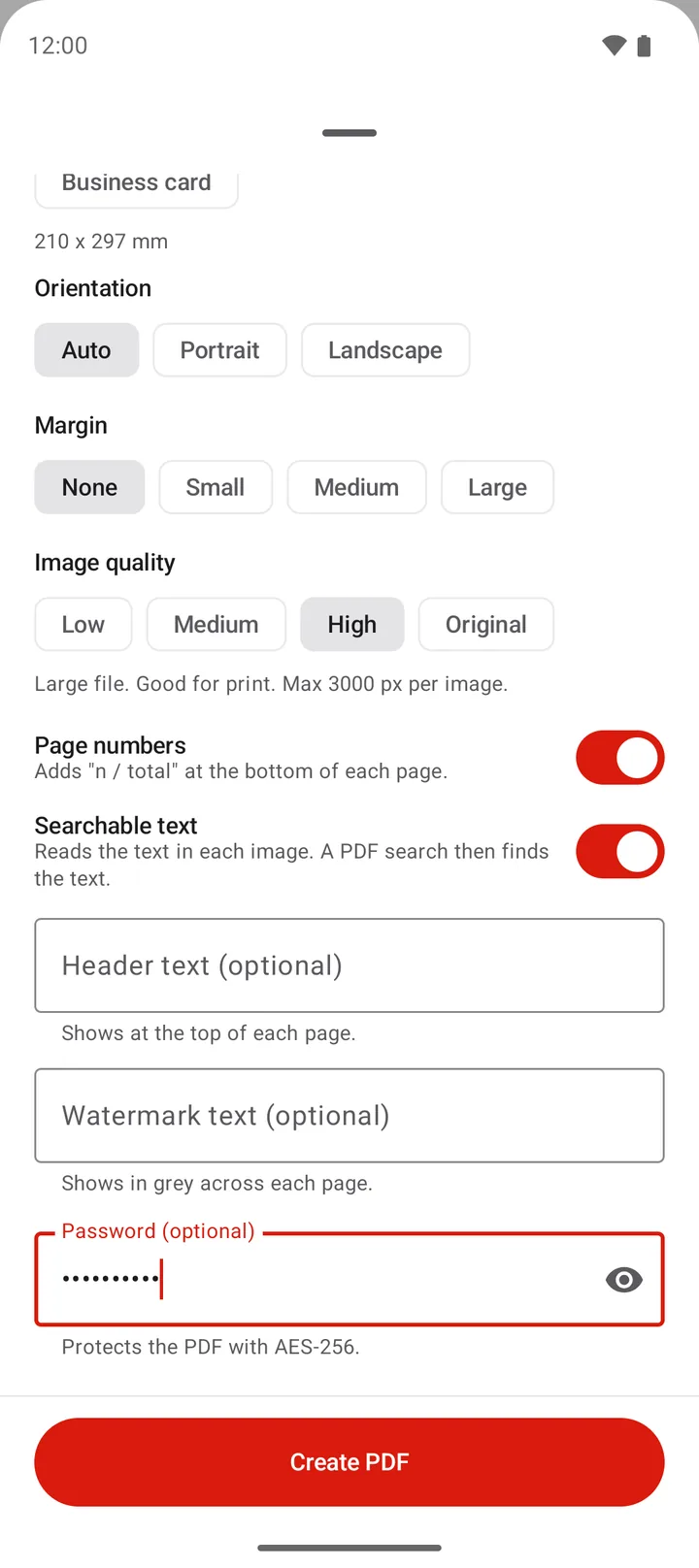
Tap Convert to PDF. The PDF options sheet opens.
-
Choose Original quality
Under Image quality, select Original. Under Page size, select Fit to image to read on a screen, or A4 or Letter to print.
-
Create the PDF
Tap Create PDF. The app saves the file in Documents/ImageToPDF.
For one PNG image only, Android can also do it without an app. Open the image in Google Photos, tap Print, select Save as PDF as the printer, then save. This method gives you no choice of quality or page size.
How does PDFriend keep the text of a PNG sharp?
JPEG compression is good for photos, but it puts grey rings around sharp edges. Text and thin lines then look blurry. PDFriend therefore checks the colors of each image before it puts the image in the PDF.
- Few colors, for example a screenshot of a chat, a settings screen, a chart or a logo: the app keeps the image without loss. This is true at every quality level.
- Many colors, for example a photo that is saved as PNG: the app uses JPEG compression, as it does for a photo. Original quality uses the lightest compression. A transparent image of this type stays without loss at Original quality.
The quality level also sets the maximum size of the image in pixels. An image with fewer pixels is less sharp, also when the app keeps every color exactly. For small text, choose the quality that keeps every pixel.
Which image quality should you choose for a PNG?
A phone screenshot is often more than 2000 px tall. Low and Medium make it smaller, so small text can become hard to read. Use this table to choose.
| Image quality | Longest side of each image | Use it for |
|---|---|---|
| Low | Max 1200 px | A small file where the text is large |
| Medium | Max 2000 px | Charts and pictures for email |
| High | Max 3000 px | Most screenshots, and print |
| Original | No resize, up to 4096 px | Screenshots with small text, and every PNG that must keep all its pixels |
Limit: Original keeps an image up to 4096 px on its longest side. A very long scrolling screenshot becomes 4096 px long, so its text becomes smaller.
Should you choose Fit to image or A4 for a PNG?
The page size changes the shape of the page, not the pixels of the image.
- Fit to image makes each page the same shape as its PNG. A phone screenshot becomes a tall, narrow page with no white border. This is the best choice to read the PDF on a screen.
- A4 or Letter puts the PNG in the center of a standard page. A tall screenshot then has white space on the left and on the right. This is the best choice to print the PDF.
To show 2 screenshots next to each other, set Images per page to 2 and Orientation to Landscape. With 4 images per page, the app makes a grid of 2 by 2. A grid always uses a standard page size, and A4 replaces Fit to image. To learn the exact sizes, read PDF page sizes: A4, Letter, Legal and more.
What happens to a transparent PNG in the PDF?
The transparent parts stay transparent at every quality level. PDFriend does not add a white or a colored background behind the image. A PDF reader shows its page color behind the image, which is usually white. On paper, the transparent parts print as the color of the paper.
Tip: a logo with white lines on a transparent background can be hard to see on a white page. Check the PDF on your phone before you send it.
Questions and answers
How do I convert PNG to PDF on Android?
Open PDFriend and tap Image to PDF. Select the PNG images, tap Convert to PDF, select Original quality, then tap Create PDF. The app saves the PDF in Documents/ImageToPDF.
Does converting PNG to PDF make the text blurry?
Not with the correct setting. PDFriend puts a PNG with few colors, such as a screenshot of text, into the PDF without loss. Choose Original quality, so the app also keeps every pixel.
What happens to the transparent parts of a PNG?
They stay transparent. PDFriend adds no background color behind the image. A PDF reader shows its page color there, which is usually white.
Can I convert a long scrolling screenshot to PDF?
Yes. Choose Fit to image, so the page has the same shape as the screenshot. Original quality keeps up to 4096 px on the longest side. A longer screenshot becomes 4096 px long.
Can I convert PNG to PDF without an app?
Yes, for one image. Open the PNG in Google Photos, tap Print, select Save as PDF as the printer, then save. For many PNG images in one PDF, use a PDF app.
Why is my PDF from PNG images so large?
Original quality keeps every pixel, and a PNG photo has many colors. Choose High or Medium quality for a smaller file.