
Camera to PDF: how to take a photo and save it as a PDF on Android
To go from camera to PDF on Android, open PDFriend, tap More, then tap Camera. Take the photo, tap Convert to PDF, then tap Create PDF. To add more pages, take more photos in the editor first. For paper documents, use Smart Scan instead.
How do you go from camera to PDF on Android?
The Camera tool of PDFriend opens the camera app of your phone. The photo goes straight into the editor, so you do not look for it in the gallery. For 3 photos, the steps take about two minutes.
-
Open the Camera tool
Open PDFriend. Tap More on the home screen, then tap Camera. The camera app of your phone opens.
-
Take the photo
Take the photo. If the camera app asks you to confirm the photo, confirm it.
-
Check the page in the editor
The editor opens with the photo as page 1. Crop or rotate the page if necessary.
-
Add more pages
To take the next photo, tap the camera icon at the top of the editor. To add an image from the gallery, tap Add pages.
-
Tap Convert to PDF
Tap Convert to PDF. The PDF options sheet opens.
-
Create the PDF
Choose the page size and the image quality. Tap Create PDF. The app saves the file in Documents/ImageToPDF.
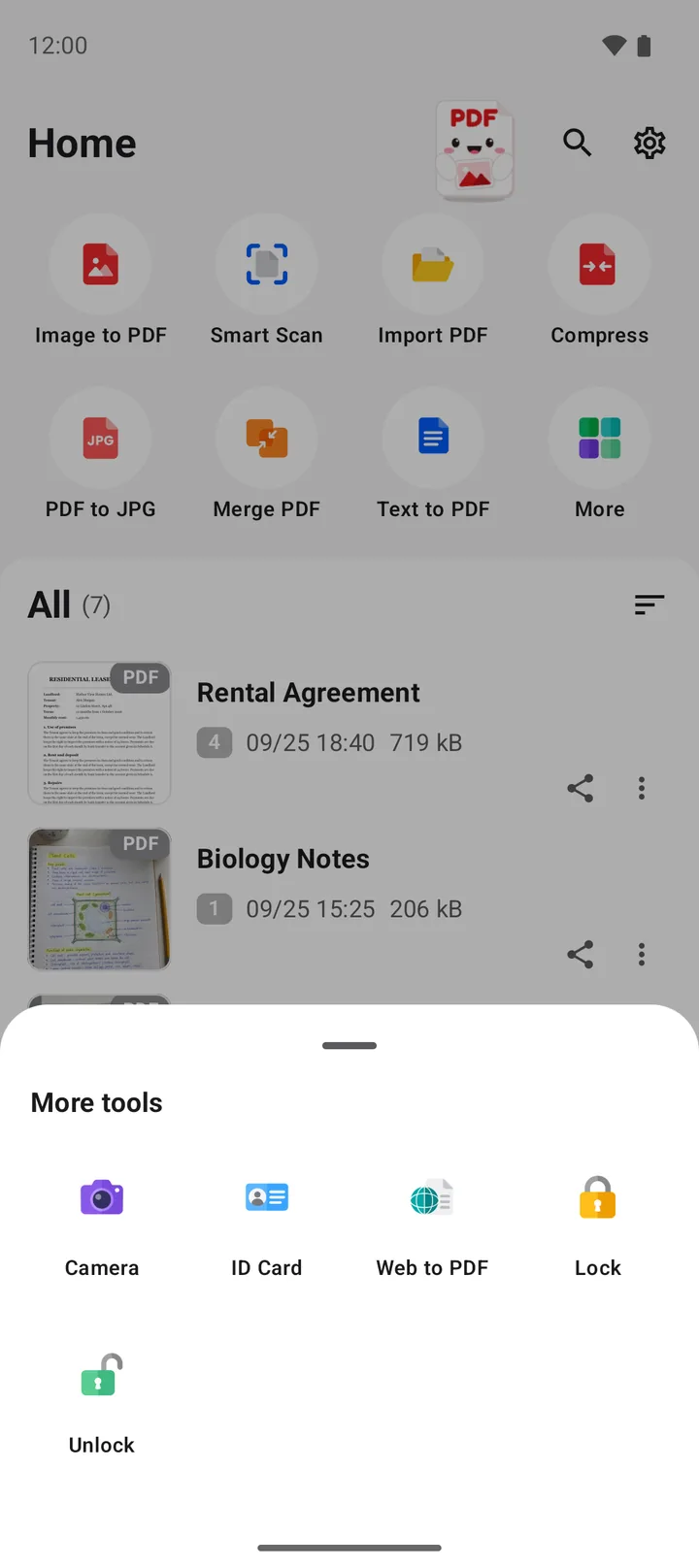
You can also tap the round + button at the bottom of the screen. The Create a PDF sheet opens, and it has the Camera tool too.
Note: PDFriend does not add the photo to your gallery. If you cancel the photo in the camera app, the app makes no page.
Should you use Camera or Smart Scan?
PDFriend has two tools that use the camera. They give different results, so choose the tool for the thing that you photograph.
| Camera | Smart Scan | |
|---|---|---|
| Where it is | In the More tools sheet | On the home screen |
| What opens | The camera app of your phone | The Google document scanner |
| Edges of the paper | You crop the page in the editor | The scanner finds the edges |
| Pages | One photo at a time, then add more in the editor | Up to 50 pages in one scan |
| Best for | Objects, rooms, damage, a whiteboard with the room around it | Contracts, forms, receipts, letters and notes on paper |
Use Camera when the photo must show the full scene, for example damage to a car for an insurance claim. Use Smart Scan when the page must look like a flat document. To learn more, read how to scan a document to PDF. Both tools put the pages into the same editor, so the next steps are the same.
Tip: the first Smart Scan downloads the scanner, which needs a network connection. If the scanner does not start, the app offers the normal camera instead.
Can you go from camera to PDF without an app?
Yes, for one photo at a time. Take the photo with the camera app. Open it in Google Photos, tap Print, select Save as PDF as the printer, then save. This gives one PDF for each photo. To put many photos in one file, use the steps above, or read how to convert a photo to PDF.
How do you take a good photo for a PDF?
- Use good light. Daylight from a window is better than the flash. The flash can put a bright spot on the photo.
- Hold the phone steady. Tap to focus on the important part, then wait one second before you take the photo.
- Fill the frame. Move closer instead of a zoom. Crop the rest of the photo in the editor.
- Choose the image quality for the use. Choose Medium (max 2000 px) for email. Choose High (max 3000 px) for print.
Questions and answers
How do I take a photo and save it as a PDF on Android?
Open PDFriend, tap More, then tap Camera. Take the photo with the camera app. Tap Convert to PDF in the editor, then tap Create PDF.
Can I put many camera photos in one PDF?
Yes. After the first photo, tap the camera icon at the top of the editor to take the next photo. Each photo is one page. All the pages go into one PDF.
Should I use Camera or Smart Scan for a paper document?
Use Smart Scan for paper. It finds the edges of the paper and can scan up to 50 pages in one scan. Use Camera for objects, rooms and other things that are not flat paper.
Does the photo go into my gallery?
PDFriend does not add the photo to your gallery. The photo goes into the PDF. To keep the photo as an image too, take it with the normal camera app, then use Image to PDF.
Can I turn a camera photo into a PDF without an app?
Yes, for one photo. Take the photo, open it in Google Photos, tap Print, select Save as PDF as the printer, then save.
Which camera app does PDFriend use?
PDFriend opens the camera app of your phone. You use the camera controls that you already know. The app then takes the photo into the editor.