
How to scan both sides of an ID card on one PDF page
Use a scanner with an ID card mode. In PDFriend, tap More, then ID Card. Scan the front, turn the card over and scan the back. Tap Convert to PDF, then Create PDF. The app puts both sides on one PDF page and keeps the file on your phone.
How do you scan the front and the back of an ID card to one page?
Many offices, banks and landlords ask for a copy of both sides of an ID card on one page. The ID Card tool of PDFriend does this in one flow. It uses the Google document scanner, which runs on the device.
-
Open the ID Card tool
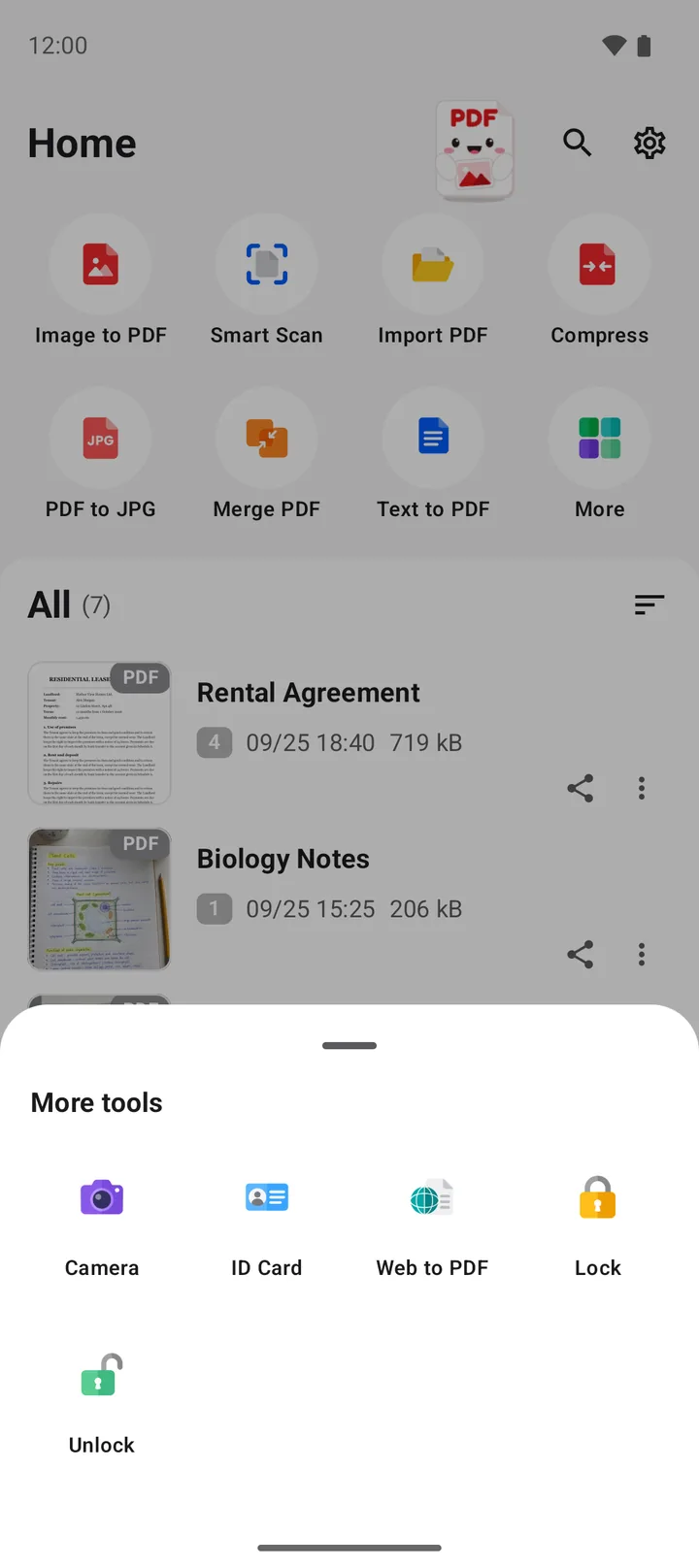
Open PDFriend and tap More on the home screen. In the More tools sheet, tap ID Card.
-
Scan the front
Put the card on a dark, flat surface. Hold the phone above the card. The scanner finds the edges of the card.
-
Scan the back
Turn the card over and scan the back. The scanner stops after 2 sides. Then finish the scan.
-
Check the two sides
The editor shows the front and the back. Crop or rotate a side if necessary. The front must be first.
-
Tap Convert to PDF
Tap Convert to PDF. The PDF options sheet opens, and Images per page is already set to 2.
-
Create the PDF
Choose the page size, for example A4 or Letter. Type a password in Password (optional) if you want one. Tap Create PDF.
Note: the first scan downloads the scanner, so it needs an internet connection. The next scans work without a connection.
How do you get a clear scan of an ID card?
A card is small and often shiny. These tips make the text and the photo on the card easy to read.
- Use a dark, flat surface. A light card on a dark table gives strong edges, so the scanner finds the card easily.
- Use soft, even light. Daylight from a window is best. Do not use a flash, because it makes a bright spot on the card.
- Tilt the phone a little if you see a reflection. A reflection can hide the number or the photo.
- Hold the phone still. Wait until the camera focuses on the small text.
- Scan the front first. The receiver expects the front at the top of the page.
Tip: choose A4 or Letter as the page size. Then the receiver can print the copy on normal paper.
How do you keep the copy of your ID card private?
A copy of an ID card is sensitive data. Someone with the copy can try to use your identity. Follow these rules to keep the copy safe.
- Keep the file on your phone. PDFriend makes the PDF on the device and saves it in Documents/ImageToPDF. The app does not upload your images or your PDF files.
- Share the copy only with the person or office that needs it. Do not post it in a group chat.
- Add a password. Type a password in Password (optional) before you tap Create PDF. For a PDF that you already made, use the Lock tool. The app uses AES-256.
- Send the password in a different way. For example, send the PDF by email and tell the password by phone.
- Add a watermark if necessary. Type a text such as "Copy for the rental contract only" in Watermark text (optional). The text shows in grey across the page.
- Delete the file when you no longer need it.
To learn more about passwords on a PDF, read How to put a password on a PDF.
Questions and answers
How do I scan both sides of an ID card on one page?
In PDFriend, tap More, then ID Card. Scan the front, then the back. Tap Convert to PDF, then Create PDF. The app puts both sides on one PDF page.
Can I use the ID Card tool for a driving license or a bank card?
Yes. The tool works for any card with two sides, for example a driving license, a residence card or a membership card. Only send a copy of a bank card when you are sure that the receiver needs it.
Does PDFriend upload my ID card?
No. PDFriend makes the PDF on your phone and saves it in Documents/ImageToPDF. The app does not upload your images or your PDF files.
How do I put a password on the ID card PDF?
Before you tap Create PDF, type a password in Password (optional). The app protects the PDF with AES-256. For a PDF that you already made, use the Lock tool.
Why is the scan of my card blurry?
A card is small, so the phone must be close to it. Hold the phone still and wait for the camera to focus. Use good light and do not use a flash on a shiny card.