
How to sign a PDF on Android
Open the PDF in PDFriend, tap the More menu, then tap Annotate and sign. Tap Signature, tap the page, draw your signature one time and tap Save. Move the signature to the correct place, then save the PDF. The app keeps the signature on your phone, so you can use it again.
How do you sign a PDF on your phone?
PDFriend has a Signature tool in its PDF viewer. You draw the signature with your finger and put it on the page. The app does the work on your phone, so the PDF does not go to a server. These steps take about one minute.
-
Open the PDF
Open PDFriend and tap the PDF in the file list. If the PDF is in another place, add it with the Import PDF tool first.
-
Open Annotate and sign
In the PDF viewer, tap the More menu (three dots), then tap Annotate and sign.
-
Draw your signature
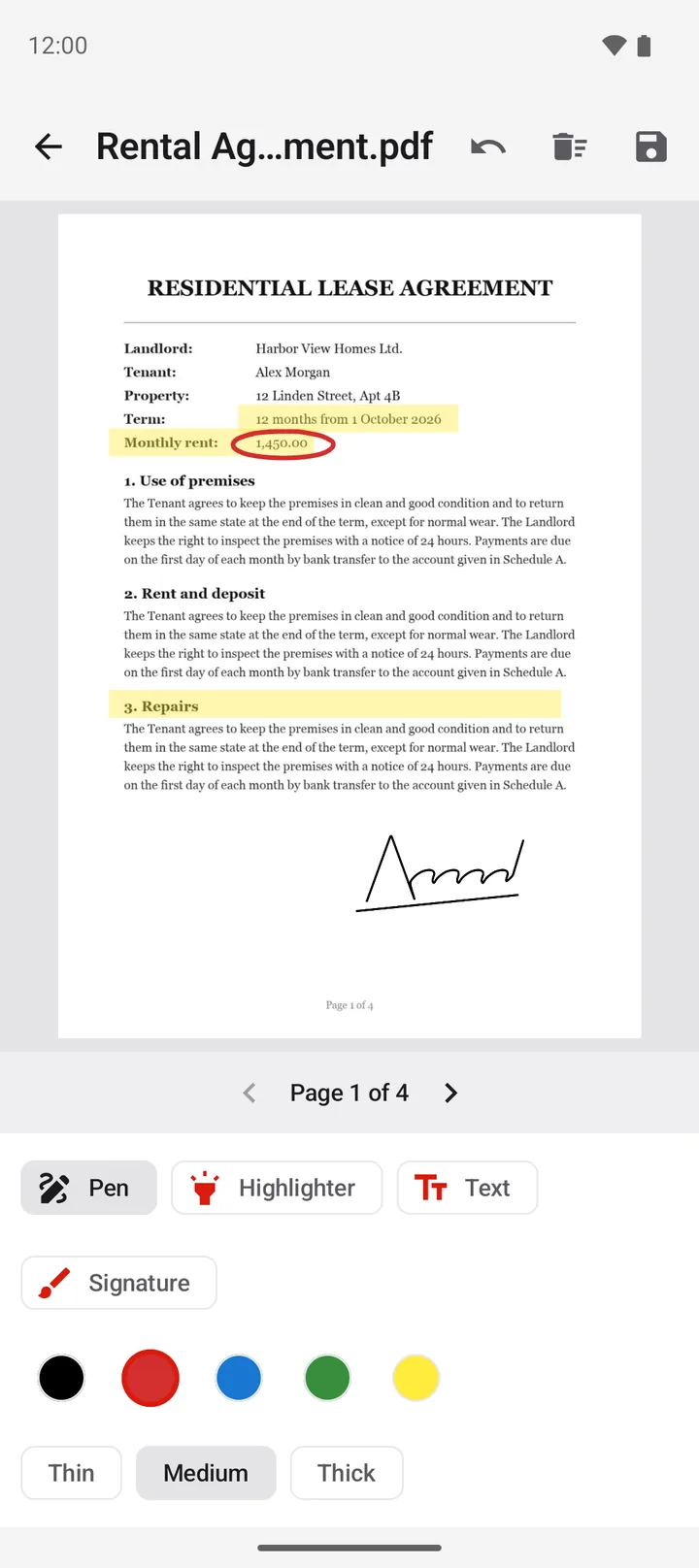
Tap Signature, then tap the page. Draw your signature in the box with your finger, then tap Save. The app keeps the signature for later use.
-
Place the signature
The signature shows in the middle of the page. Drag it to the correct place. Pinch to make it larger or smaller.
-
Save the signed PDF
Tap the Save button at the top. The app saves a new copy with "(annotated)" at the end of the name.
Note: a PDF with a password does not open in the annotate screen. Remove the password with the Unlock tool first, then sign the unlocked copy.
How do you use the same signature again?
You draw your signature one time. PDFriend saves it in the private storage of the app on your phone. The next time, tap Signature, then tap the page where the signature must go. The app puts the saved signature at that point, and you do not draw again.
The signature stays on your phone. The app does not upload it. An uninstall of the app deletes the saved signature.
Tip: if the signature is in the wrong place, drag it again before you save. To remove it, tap Undo.
What else can you add to a PDF?
The annotate screen has 4 tools. You can use them on every page of the PDF, and you can move between the pages.
| Tool | What it does | Typical use |
|---|---|---|
| Pen | Draws a free line | Initials, a tick in a box, a circle around a word |
| Highlighter | Draws a line that you can see through | Mark an important sentence |
| Text | Puts a text box on the page | A date, your name, a short note |
| Signature | Puts your saved signature on the page | Sign a form or a contract |
The Pen, the Highlighter and the Text tool have 5 colors: black, red, blue, green and yellow. The Pen and the Highlighter have 3 widths: Thin, Medium and Thick. Undo removes the last change. Clear page removes all changes on the current page.
Is a drawn signature legally valid?
A drawn signature is an image of your handwriting on the page. Many people use it for everyday forms, for example a school form or a delivery note. It shows that you signed, the same as ink on paper.
Important: a drawn signature is not a certified digital signature. It does not check your identity, and it does not lock the document against changes. For a legal e-signature with identity checks, use a certified e-signature service.
Ask the person who sent the document which type of signature they accept. The rules are different in each country and for each type of document.
Questions and answers
Can I sign a PDF on Android without printing it?
Yes. In PDFriend, open the PDF, tap Annotate and sign, draw your signature, place it on the page and tap Save. You do not need a printer or a scanner.
Do I have to draw my signature every time?
No. PDFriend saves the signature on your phone after you draw it one time. The next time, tap Signature, then tap the page. The saved signature goes on the page at that point.
Is a drawn signature a legal electronic signature?
A drawn signature is an image of your signature on the page. It is not a certified digital signature, and it does not prove your identity. For a legal e-signature with identity checks, use a certified e-signature service.
Does the app upload my signature?
No. PDFriend keeps the signature in the private storage of the app on your phone. An uninstall deletes it.
Can I sign a PDF that has a password?
Not directly. Remove the password first with the Unlock tool. Then sign the unlocked copy.
Does signing change the original PDF?
No. The app saves the signed PDF as a new file with "(annotated)" at the end of the name. The original file does not change.