
How to save a website as a PDF on Android
To save a website as a PDF on Android, open the page in Chrome, open the Chrome menu, tap Share, then tap Print and select Save as PDF. You can also type the address in an app such as PDFriend: tap More, tap Web to PDF, then tap Create PDF. In both methods, the text stays selectable.
How do you save a web page as a PDF from Chrome?
Chrome for Android can print a web page, and Android can print to a PDF file. This method needs no extra app. It uses the page exactly as your browser shows it, so a page after a login works too.
-
Open the web page in Chrome
Open Chrome and go to the web page that you want to save.
-
Open the print command
Open the Chrome menu (three dots), tap Share, then tap Print.
-
Choose Save as PDF
At the top of the print screen, open the printer list and select Save as PDF.
-
Save the file
Tap the round PDF button. Choose a folder and a file name, then tap Save.
Note: the menu names can change a little between Chrome versions and phone makers. If you do not see Print after Share, look for Print in the list of share targets.
How do you convert a website to PDF with PDFriend?
PDFriend has a Web to PDF tool in the More tools sheet. You type the address, and the app prints the page to a PDF on your phone. The app uses the print system of Android, so the text in the PDF stays text. You can select it, copy it and search it.
-
Open Web to PDF
Open PDFriend. Tap More on the home screen, then tap Web to PDF.
-
Type the web address
Type or paste the address in the Web address field, for example example.com. The app adds https:// if necessary.
-
Tap Create PDF
Tap Create PDF. The app loads the page and prints it to A4 pages. Keep the internet connection on.
-
Open or share the PDF
The app saves the file in Documents/ImageToPDF. The file name comes from the address, for example example_com.pdf.
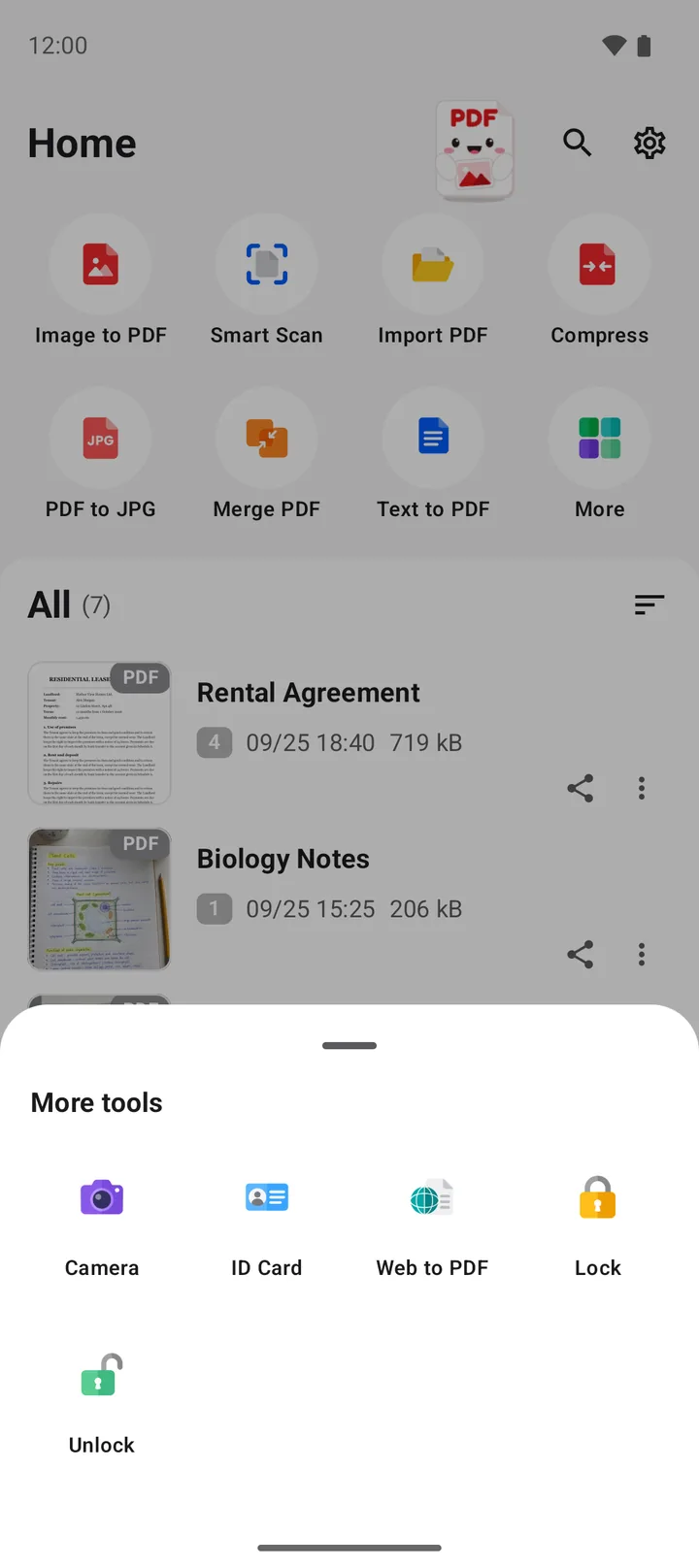
Web to PDF needs an internet connection. If the address is not correct, the app shows "The address is not a web page." If the page does not load, the app shows "The app cannot load the page. Check the address and the network."
Limit: PDFriend loads the address in its own web view, not in your browser. Your browser login and your browser cookies do not carry over. For a page behind a login, such as a bank statement or an order in a web shop, use the Chrome method.
Which method should you use?
Both methods give a PDF with real text. The differences are the page size, the login and the number of taps.
| Task | Chrome, Print, Save as PDF | PDFriend Web to PDF |
|---|---|---|
| A public page, such as an article or a recipe | Yes | Yes |
| A page after a login | Yes | No |
| Choose the paper size | Yes, in the print screen | No, always A4 |
| Save only some pages | Yes, in the print screen | Yes, later with Extract pages |
| Find the PDF later | In the folder that you choose | In the app file list and in Documents/ImageToPDF |
A web page has no fixed page size. The print system cuts a long page into many paper pages. To keep only some of the pages, read how to split a PDF on Android. To learn about A4 and Letter, read PDF page sizes: A4, Letter, Legal and more.
Tip: wait until the page shows all its images before you print from Chrome. If you have text to save instead of a web page, read how to convert text to PDF on Android.
Questions and answers
How do I save a web page as a PDF on Android without an app?
Open the page in Chrome. Open the Chrome menu, tap Share, then tap Print. Select Save as PDF as the printer, tap the PDF button, then tap Save.
Can I select and copy the text in the saved PDF?
Yes. Both methods print the web page, so the text stays text. You can select it, copy it and search it. A screenshot of the page does not give you this.
Can PDFriend save a page that needs a login?
Usually not. PDFriend loads the address in its own web view, not in your browser. Your browser login does not carry over, so the app gets the page that a visitor without a login sees. Use Chrome with Print and Save as PDF for such a page.
Which page size does Web to PDF use?
PDFriend prints each web page to A4 pages. A long page becomes many A4 pages. To choose Letter or another size, use Chrome with Print, and set the paper size in the print screen.
Why does the app say that it cannot load the page?
The message "The app cannot load the page. Check the address and the network." shows when the address does not answer or answers with an error. Check the spelling of the address and the internet connection, then try again.
Does PDFriend upload the web page to a server?
No. The app loads the web address on your phone, as a browser does, and makes the PDF on the phone. It does not send the PDF to a server.