
How to convert an image to text on Android
To convert an image to text on Android, open the photo in Google Photos, tap Lens, select the text and copy it. To read a scanned page on the phone, use PDFriend: in the editor, tap the More menu on the page, tap Extract text, then tap Copy. PDFriend reads only languages that use the Latin alphabet.
How do you copy text from a photo without an extra app?
Most Android phones have Google Lens. It is part of Google Photos and of the Google app. Lens reads the text in a photo, and you can copy the words. The names of the buttons can change a little between app versions.
-
Open the photo
Open the photo in Google Photos.
-
Tap Lens
Tap the Lens button at the bottom of the screen. Lens looks for the text in the photo.
-
Select the text
Tap Text if Lens shows it. Then tap or drag over the words that you need.
-
Copy the text
Tap Copy text. Paste the text in a note, a message or a document.
Lens also works with the camera. Open Lens in the Google app, point the camera at the paper, then select the text.
How do you extract text from an image with PDFriend?
PDFriend has an Extract text command for each page in the editor. It is useful when you scan a document and need the text of one page. The app reads the text on the phone, so the image does not go to a server.
-
Add the image
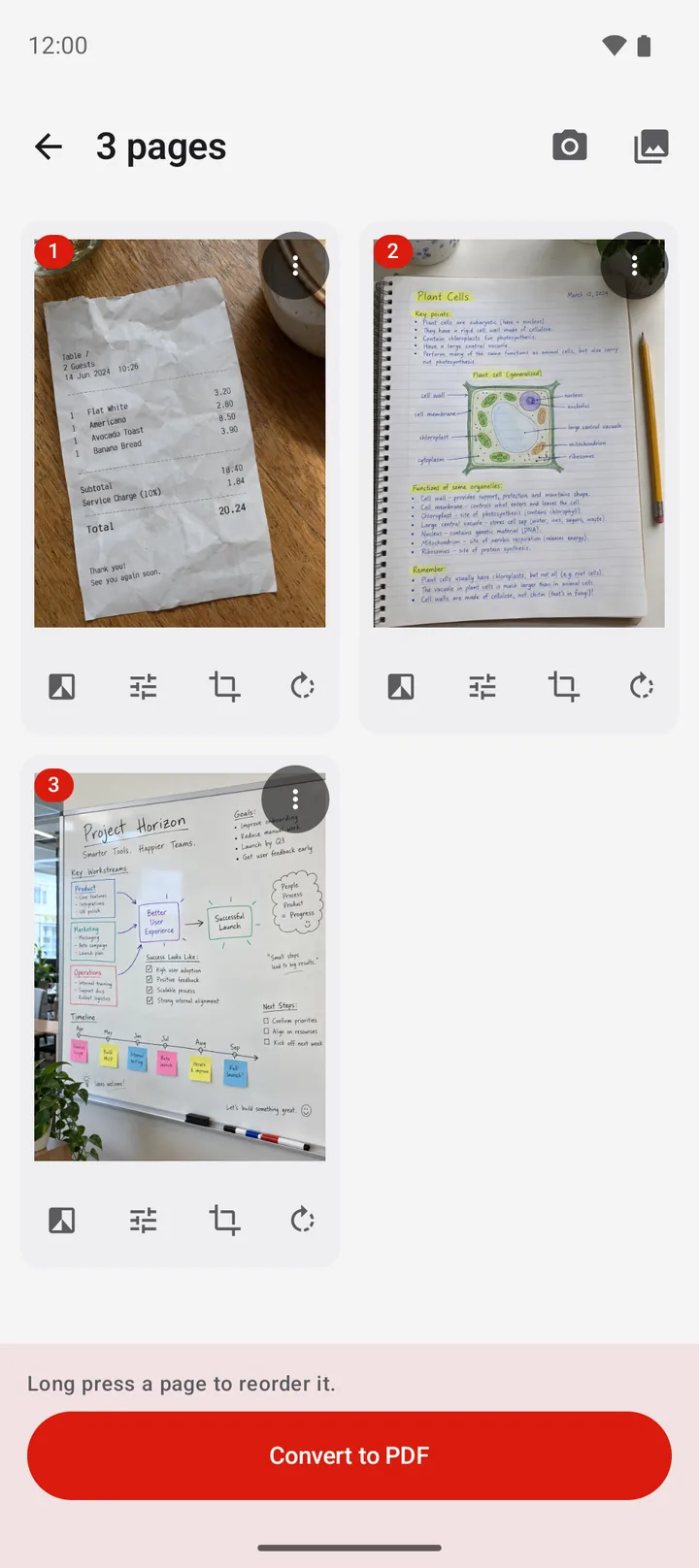
Open PDFriend. Tap Image to PDF and pick the image, or tap Smart Scan to scan a paper page.
-
Open the page menu
In the editor, tap the More menu (three dots) at the top right corner of the page.
-
Tap Extract text
Tap Extract text. The app reads the text on the page on the phone.
-
Copy the text
The Text on the page window shows the text. Tap Copy, then paste the text where you need it. Tap Share to send it to another app.
When the app copies the text, it shows "Text copied". If the page has no text that the app can read, the window shows "No text was found on this page."
Limit: PDFriend reads only languages that use the Latin alphabet, for example English, German, French and Spanish. It does not read Japanese, Korean, Chinese, Arabic or Russian text. For these languages, use Google Lens.
How do you get better text from a photo?
Text recognition needs sharp, clear letters. These steps help both Google Lens and PDFriend:
- Hold the phone parallel to the paper. Fill the screen with the text.
- Use good light. Do not let the shadow of the phone fall on the paper.
- In PDFriend, crop the page to the text before you tap Extract text.
- Use the Docs or Black and white filter for printed pages. The letters then stand out from the paper.
- Check names, numbers and prices in the result. The app can confuse similar letters, for example "0" and "O".
How do you keep the text in a PDF?
Extract text gives you the text of one page to copy. To keep the text of all pages inside the PDF, turn on Searchable text in the PDF options sheet. The app adds the text as a hidden layer, so a PDF search finds the words. Read how to make a searchable PDF with OCR.
To make a PDF from text that you type or paste, use Text to PDF. Read how to convert text to PDF on Android.
Questions and answers
How do I extract text from an image on Android?
Open the image in Google Photos, tap Lens, select the text and tap Copy text. In PDFriend, open the image in the editor, tap the More menu on the page, then tap Extract text and Copy.
Can I copy text from a photo without the internet?
Yes, with PDFriend. Extract text reads the text on your phone. The image does not go to a server.
Which languages can PDFriend read in an image?
PDFriend reads languages that use the Latin alphabet, for example English, German, French and Spanish. It does not read Japanese, Korean, Chinese, Arabic or Russian text.
Can PDFriend read handwriting?
The app is made for printed text. Clear handwriting sometimes works, but the result often has wrong words. Check the text before you use it.
Why does it say that no text was found?
The app found no letters of the Latin alphabet on the page. The photo can be blurred, too dark or too small, or the text uses a different alphabet. Take the photo again, closer and in good light.
How do I make the text of a scan searchable in a PDF?
Turn on the Searchable text switch in the PDF options sheet before you tap Create PDF. PDFriend adds the recognized text as a hidden layer, so a PDF search finds the words.