
How to make a searchable OCR PDF on Android
To make an OCR PDF on Android, turn on text recognition when you create the PDF from scans or images. In PDFriend, scan or pick the pages, tap Convert to PDF, turn on Searchable text, then tap Create PDF. The app reads the text on the phone and adds it to the page as hidden text. A PDF search then finds the words.
How do you make an OCR PDF on Android?
A scan is a photo of a page. A PDF of photos has no text, so a PDF search finds nothing. OCR (optical character recognition) reads the letters in the photo and turns them into text. PDFriend does this when you create the PDF, with the Searchable text switch in the PDF options sheet.
-
Add the pages
Open PDFriend. Tap Smart Scan to scan paper, or tap Image to PDF to pick images of documents.
-
Prepare the pages
In the editor, put the pages in order. Crop each page to the paper, and rotate a page that is on its side.
-
Tap Convert to PDF
Tap Convert to PDF. The PDF options sheet opens.
-
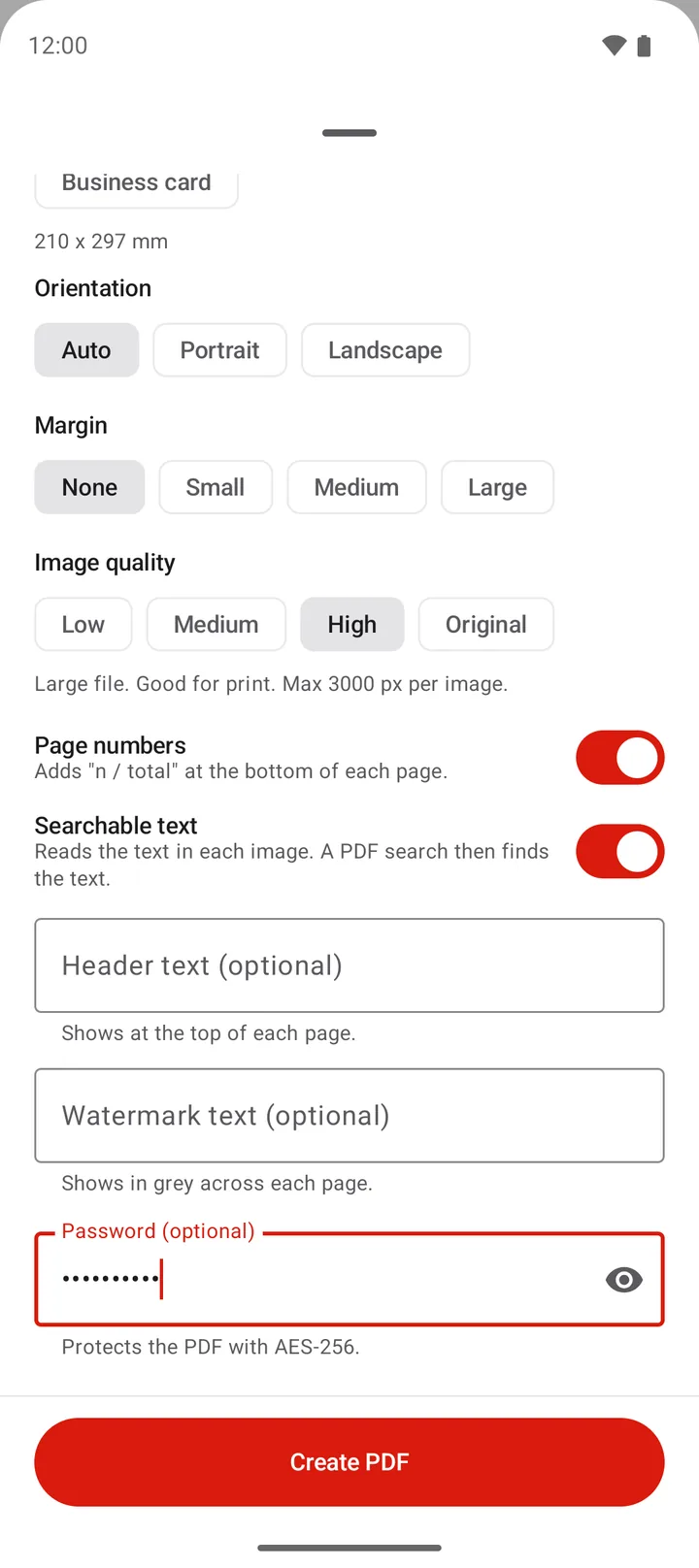
Turn on Searchable text
Turn on the Searchable text switch. Set the other options, for example the page size and the image quality.
-
Create the PDF
Tap Create PDF. The app reads the text of each image, then saves the PDF in Documents/ImageToPDF.
While the app works, it shows "Reading the text of image 1 of 5" for each image. Text recognition adds time to each page, so a PDF of many pages takes longer to make.
Tip: give the app a clear image. Scan in good light, crop the page to the paper, and use the Docs or Black and white filter for printed text.
What does the Searchable text switch add to the PDF?
The switch adds hidden text to each page. The image stays the same. This is what the app does:
- The app reads the words in each image. It does this on your phone.
- The app puts each word into the PDF as text, at the same place as the word in the image.
- The text is invisible. You see only the image, but a PDF reader can search the text.
Each hidden word is on top of the same word in the image. So when a search finds a word, the PDF reader highlights the correct place on the page. The app can read a word incorrectly, and the hidden text then has the same mistake.
How do you search the text in an OCR PDF?
Use a PDF reader app that has a search command, for example the PDF viewer of Google Drive. Open the PDF, tap the search icon and type a word. The reader shows the pages that contain the word.
The PDF viewer in PDFriend shows the pages as images and has no text search. In the viewer, tap the More menu, then tap Open with another app to search the PDF in a different reader. Many PDF readers also let you select the hidden text and copy it.
A searchable PDF also helps outside your phone. A computer, a cloud drive or a document system can index the words, so you can find the file by its content.
What can OCR in PDFriend not do?
- Only the Latin alphabet. The app reads languages that use the Latin alphabet, for example English, German and French. It does not read Japanese, Korean, Chinese, Arabic or Russian text.
- Some letters are left out. The hidden text has only the letters of Western European languages. Other letters, for example the Polish "ł", are not in the hidden text, so a search cannot find them.
- No text editing. The recognized text is hidden. You cannot change the words on the page.
- Handwriting. Handwriting and very small print often give wrong words or no words.
To see the recognized text of one page before you make the PDF, use Extract text in the editor. Read how to copy text from an image on Android.
Can you make an existing PDF searchable?
PDFriend cannot add OCR to a PDF file that already exists. The Searchable text switch works only when the app creates a PDF from images or scans. The Import PDF, Merge PDF and Compress tools do not read the text.
For a scanned PDF, use this workaround. It makes a new, searchable copy:
- On the home screen, tap PDF to JPG and pick the PDF. The app saves each page as a JPG image in Pictures/ImageToPDF.
- Tap Image to PDF and select the images of the pages in the correct order.
- Tap Convert to PDF, turn on Searchable text, then tap Create PDF.
A PDF with a password must be unlocked first. Read how to remove the password from a PDF.
Questions and answers
What is an OCR PDF?
An OCR PDF is a PDF of scanned pages that also contains the text of the pages. OCR means optical character recognition. The page looks the same, but a PDF search can find the words.
Can PDFriend make an existing PDF searchable?
Not directly. The Searchable text switch works only when you create a PDF from images or scans. As a workaround, save the pages as JPG images with PDF to JPG, then make a new PDF from the images with Searchable text on.
Which languages does the text recognition read?
It reads languages that use the Latin alphabet, for example English, German, French and Spanish. It does not read Japanese, Korean, Chinese, Arabic or Russian text.
Does OCR change how the PDF looks?
No. The app draws the recognized words as invisible text over the image. The page shows the same image as before. Only search and text tools see the hidden words.
Do my scans go to a server for OCR?
No. PDFriend reads the text on your phone. The app makes the PDF on the phone and does not upload your images.
Why does the search not find a word in my OCR PDF?
The app did not read the word. This happens with blurred photos, small print, handwriting and letters that are not in the Latin alphabet. Scan the page again in good light, then make the PDF again.