
How to edit a PDF on Android
To edit a PDF on Android with PDFriend, open the PDF, tap the More menu, then tap Annotate and sign. Add text, highlight lines, draw with the pen or add a signature, then tap Save. The app saves an edited copy. It cannot change or delete the text that is already in the PDF.
What can you edit in a PDF on a phone?
"Edit a PDF" can mean two different things. You can add new content on top of the page, or you can change the content that is already there. PDFriend does the first. It does not do the second.
| Edit | PDFriend | How |
|---|---|---|
| Add text to a PDF | Yes | Annotate and sign, Text |
| Highlight a PDF | Yes | Annotate and sign, Highlighter |
| Write or draw on a PDF | Yes | Annotate and sign, Pen |
| Sign a PDF | Yes | Annotate and sign, Signature |
| Keep only some pages | Yes | Extract pages |
| Join PDF files | Yes | Merge PDF |
| Make the file smaller | Yes | Compress |
| Add or remove a password | Yes | Lock and Unlock |
| Change or delete the existing text | No | Not possible |
| Change or delete the existing images | No | Not possible |
To correct a word in the original text, edit the source document, for example the Word file, and make the PDF again. On a paper form, you can also put a text box over an empty field.
How do you add text, highlights and drawings to a PDF?
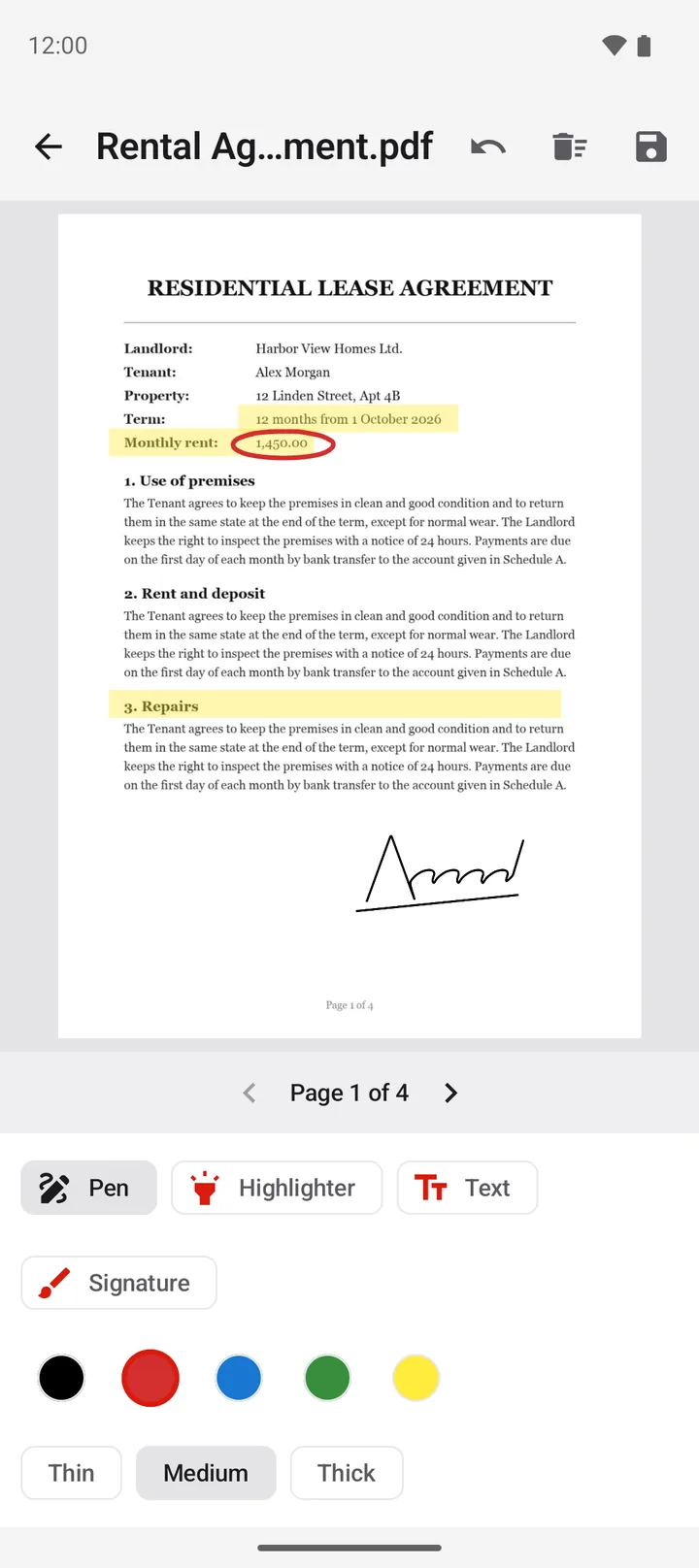
The Annotate and sign screen has 4 tools: Pen, Highlighter, Text and Signature. The colors are black, red, blue, green and yellow. The Pen and the Highlighter have 3 widths: Thin, Medium and Thick.
-
Open the PDF
Open PDFriend and tap the PDF in the file list. If the PDF is in another place, add it with the Import PDF tool first.
-
Open Annotate and sign
In the PDF viewer, tap the More menu (three dots), then tap Annotate and sign.
-
Add text
Tap Text, then tap the page where the text must start. Type the text, then tap Save. Drag the text box to move it. Pinch to make it larger or smaller.
-
Highlight or draw
Tap Highlighter or Pen. Choose a color and a width: Thin, Medium or Thick. Then draw on the page with your finger.
-
Correct a mistake
Tap Undo to remove the last change. Tap Clear page to remove all your changes on the page.
-
Save the edited copy
Tap the Save button at the top. The app saves a new PDF with "(annotated)" at the end of the name. The original file does not change.
The app saves the edited PDF as a new file. The original PDF stays as it was. The new file goes to Documents/ImageToPDF and shows in the file list.
Note: the app draws your changes as one image layer over the page. The text that you add does not become searchable text. The Highlighter does not select words: you draw it over the line with your finger.
To add a signature, tap Signature and draw it one time. The app keeps it for the next PDF. For the full steps, read how to sign a PDF on your phone.
Which other PDF edits can you do on Android?
PDFriend also changes the pages, the size and the password of a PDF. Each tool saves a new file, so the original stays safe.
- Extract pages: in the PDF viewer, tap the More menu, then tap Extract pages. Type the pages to keep, for example 1-3, 5. Read how to split a PDF on Android.
- Merge PDF: join 2 or more PDF files into one, in the order that you choose. Read how to merge PDF files on Android.
- Compress: make a PDF smaller with 3 levels: Small, Medium and Light reduction. Read how to make a PDF smaller on Android.
- Lock and Unlock: tap More on the home screen, then tap Lock or Unlock. Lock saves a copy with a password. Unlock saves a copy without it, after you type the correct password. Read how to put a password on a PDF.
- Export pages as images: in the PDF viewer, tap the More menu, then tap Export pages as images.
Tip: to edit a PDF with a password, unlock it first. Annotate, Compress and Merge do not work on a file with a password. After the edit, you can lock the new file again.
Questions and answers
Can I edit the existing text of a PDF on Android with PDFriend?
No. PDFriend cannot change or delete the text or the images that are already in the PDF. It adds text, highlights, drawings and a signature on top of the page.
How do I add text to a PDF on my phone?
In PDFriend, open the PDF, tap the More menu, tap Annotate and sign, then tap Text. Tap the page, type the text and tap Save. Then tap the Save button at the top to save the copy.
How do I highlight text in a PDF?
Open Annotate and sign, tap Highlighter, choose a color such as yellow, then draw over the line with your finger. The highlight is transparent, so the text under it stays visible.
Can I search or copy the text that I add?
No. The app draws your text, highlights and drawings as one image layer on top of the page. The added text looks like text, but a PDF search does not find it. The original text of the PDF stays searchable if it was searchable before.
Can I edit a PDF that has a password?
Not directly. The app shows "Remove the password first, then annotate the copy." Use the Unlock tool to save a copy without the password, then edit the copy.
Can I change my annotations after I save?
Before you save, you can move, resize and undo your changes. After you save, the changes are part of the page image layer. Keep the original file, so you can start again from it if necessary.